

































Projects, tasks and customers
Set up what people clock in on, make choosing a project required, and decide who sees which project.
Projects show what people work on, for example a building you clean or a customer job. Employees choose one when they clock in, and you see the hours per project in reports. Tasks split a project further, such as “Windows” or “Deep clean”. Customers are who the work is for.
You don’t need projects to track time. Set them up only if you want hours per job. Owners and admins set them up, best on the web.
Add a customer
- Open Company → Customers.
- Click Add customer, enter the company name and a contact person if you like, and save.
Add a project
- Open Projects in the menu.
- Click New project.
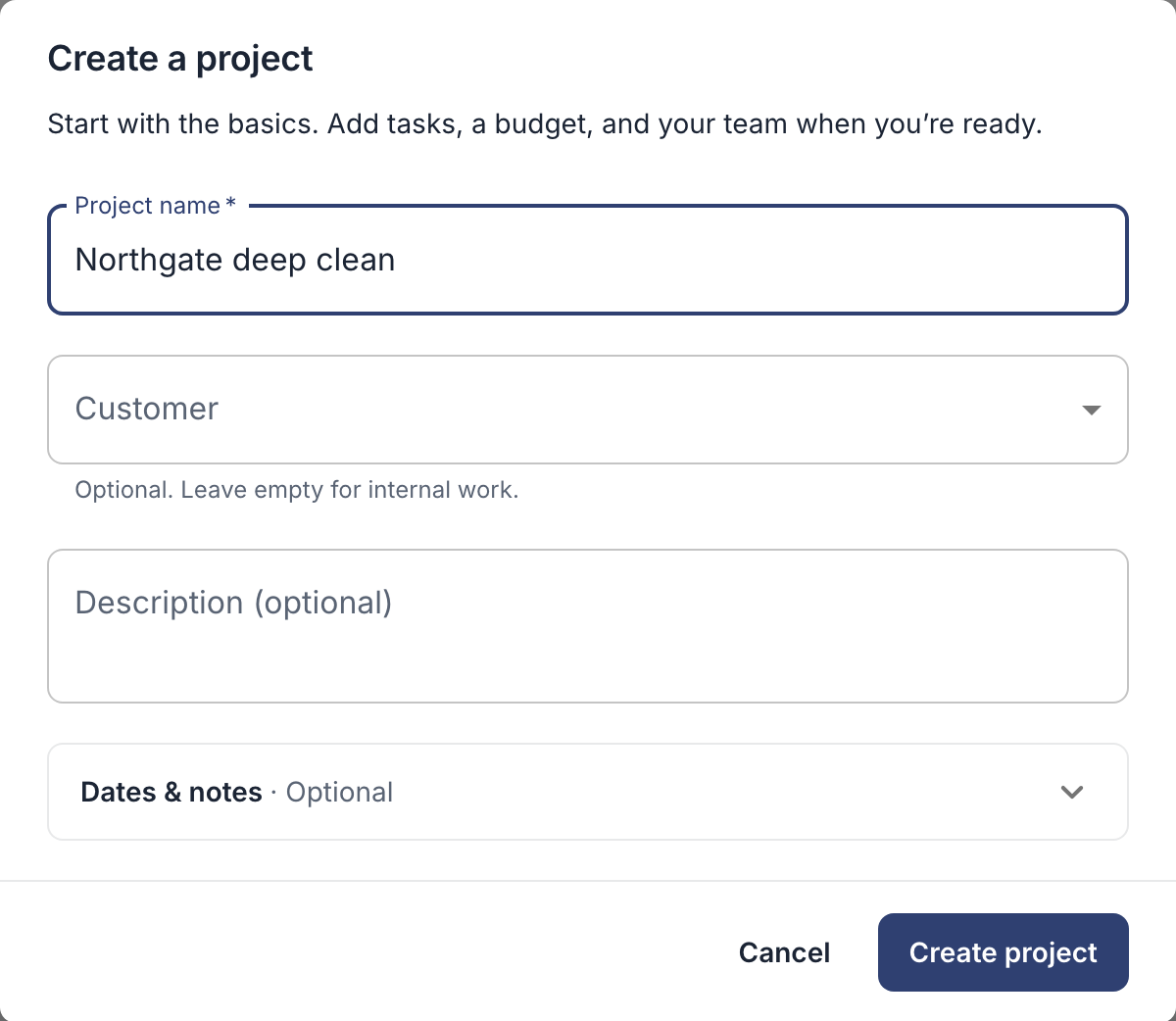
- Enter the project name, and choose the customer. Leave the customer empty for internal work.
- Click Create project.
Add tasks
- Open the project and choose the Tasks tab.
- Click Add task, enter a task name and, if you use them, a job code, and save the task.
- To make a task required for this project, open Task settings and turn on Require a task when tracking time.
Make choosing a project required
- Go to Settings → Clocking in & out → Requirements.
- Turn on Require a project, and Require a task too if you like.
- Click Save changes.
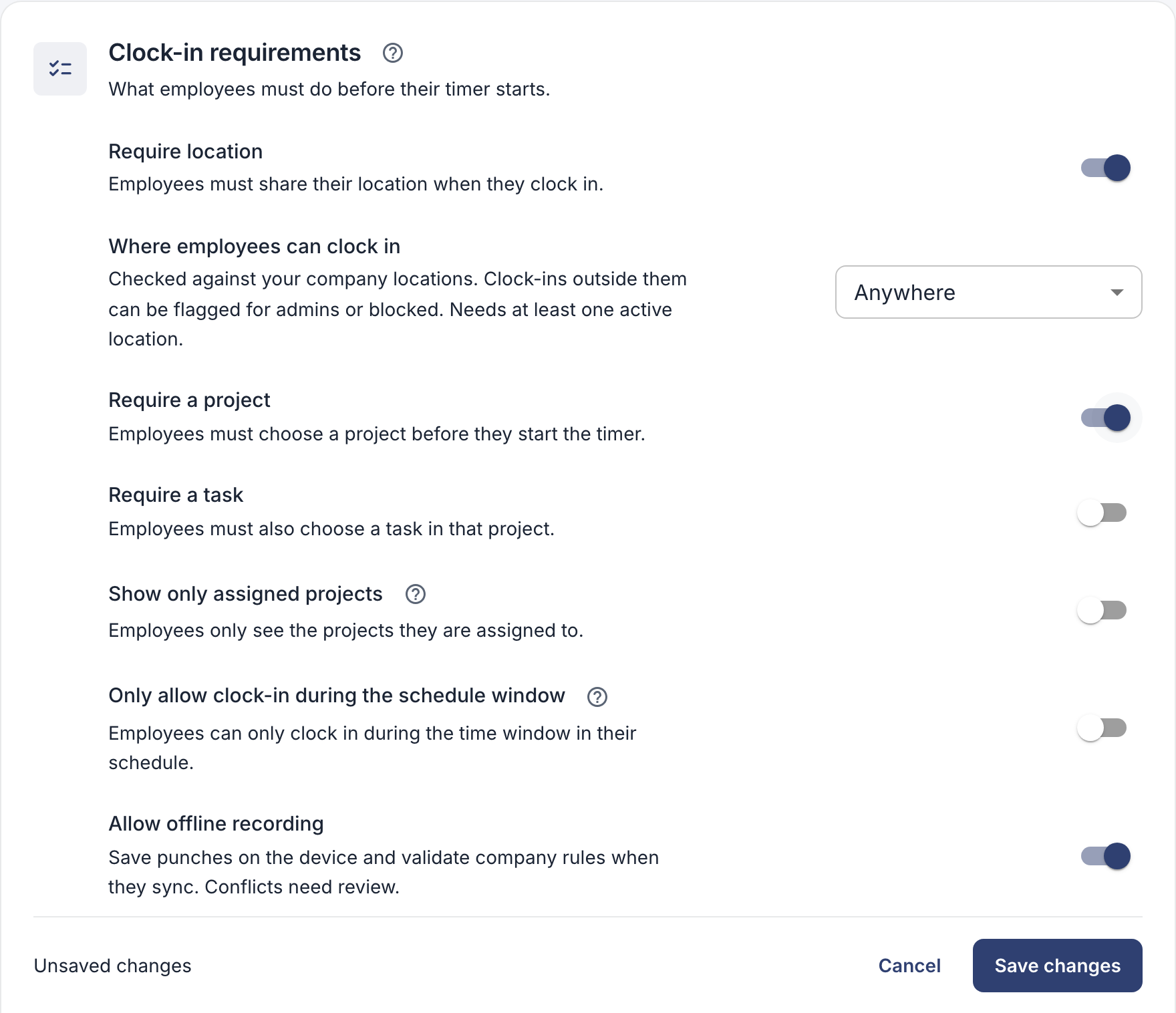
These settings apply when people clock in, not to hours added afterwards. A project’s own task requirement applies to both. If you require a task, every project needs at least one task, or nobody can clock in on it.
Decide who sees which project
By default, everyone sees every active project. To show people only their own projects:
- In the project, open the Team tab and click Manage access.
- Add the employees or teams who work on it, and click Save access.
- In the clock-in requirements above, turn on Show only assigned projects and click Save changes.
Owners and admins still see every project. If choosing a project is required, someone without any project of their own can’t clock in, so give everyone at least one.
Finished projects
Archive a finished project with Archive project in its menu. It disappears from clock-in, and its hours stay in reports. Nobody can be clocked in on it at the time, and no kiosk can use it as its project. A project with hours can’t be deleted, only archived.
Good to know
- Who can add them: owners and admins. Employees can add customers, projects or tasks only if you allow it under Settings → Permissions & approvals → Projects. Team managers can create and edit their team’s projects: see Roles, teams and managers.
- In the app: More → Projects or Customers, with New project and New customer. In a project, Add a task adds tasks and Project access decides who sees it. The settings are under Company settings → Projects & tasks.
- A customer can only be deleted when it has no projects, archived ones included.