

































Reminders and notifications
Get reminded to clock in and out, and choose which notifications you get.
EasyHours can remind you to clock in and out, and tells you when something happens, such as your leave being approved. Reminders arrive on your phone, through the EasyHours app. Other notifications also appear under the bell in EasyHours.
Your company may require reminders and set their timing. If you can’t change them, ask your admin.
Reminders to clock in and out
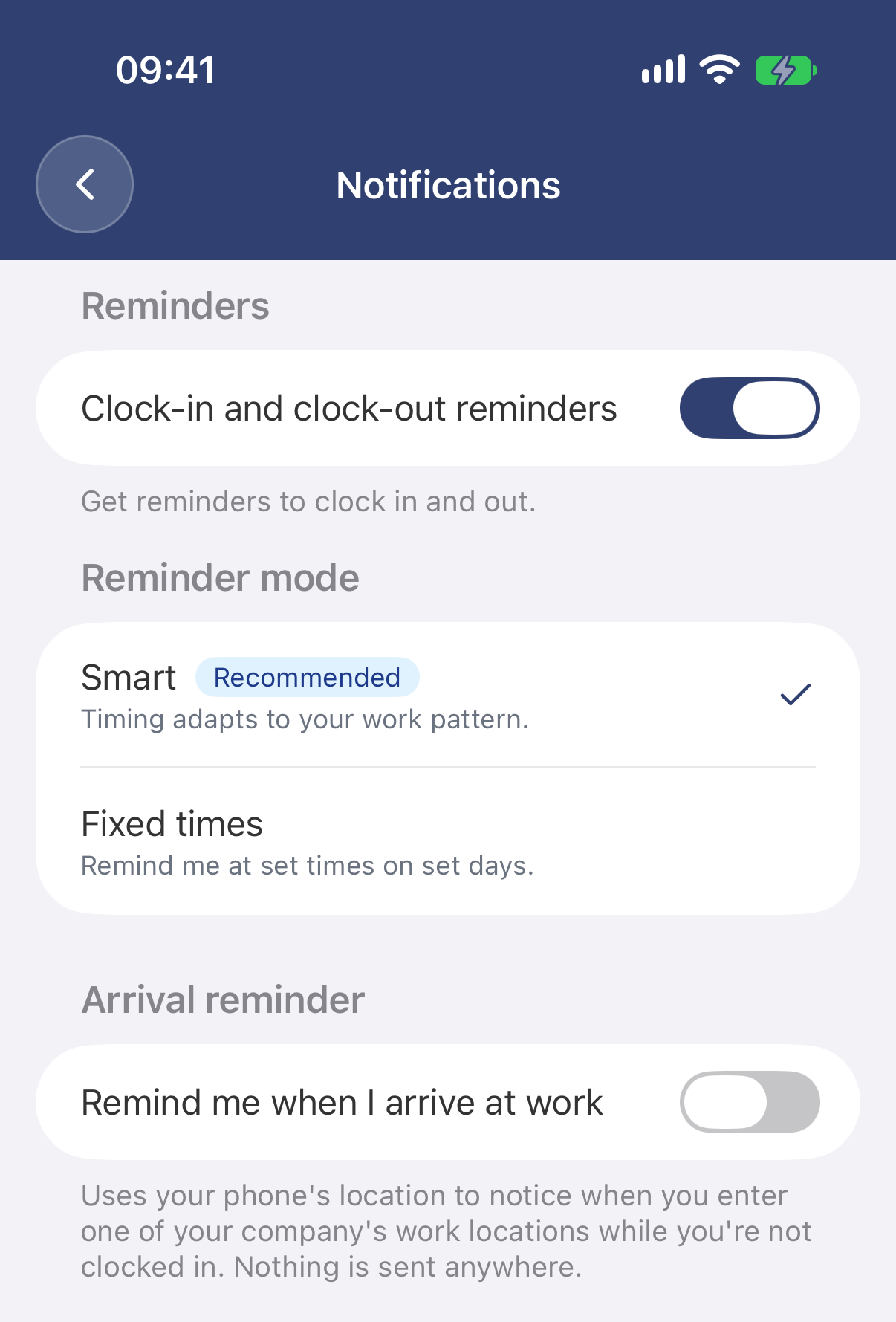
In the app
- Tap More, tap your name, then Notifications & reminders.
- Turn on Clock-in and clock-out reminders.
- Under Reminder mode, choose Smart or Fixed times. For fixed times, choose the days and times.
On the web
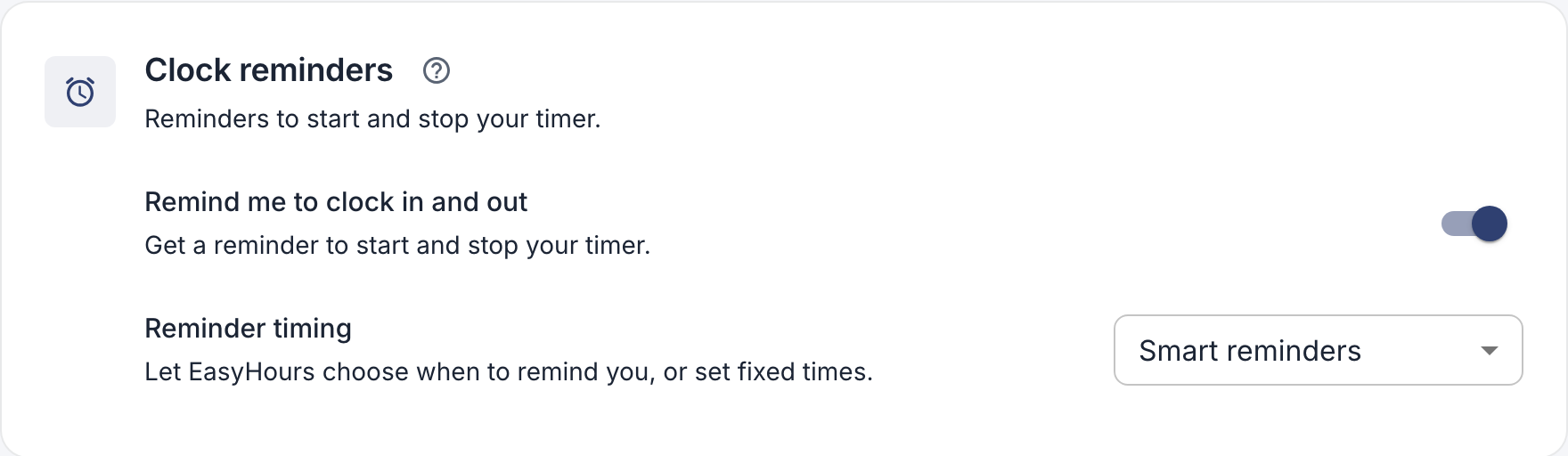
- Go to Settings → Notifications → Reminders.
- Turn on Remind me to clock in and out.
- Under Reminder timing, choose Smart reminders or Fixed times. For fixed times, choose the days and times.
- Click Save changes.
- Smart reminds you shortly before you usually start and finish, based on your shifts, your working hours or when you normally clock in. Reminders during your leave are skipped.
- Fixed times reminds you at the times and on the days you choose.
Remind me when I arrive at work (in the app only) reminds you to clock in when you reach one of your company’s work sites. It needs location access set to “Always”. Your location stays on your phone.
Notifications
You get a notification when, for example, your leave is approved or rejected, your week is sent back, your shifts for a week are published, or a coworker asks you to take a shift. Managers also hear about new requests from their team.
To choose which ones you get on your phone, go to Settings → Notifications → Updates on the web and click Save changes. In the app, scroll down below the reminders. All notifications also appear under the bell at the top of the web app.
Not getting any?
- Notifications are off for EasyHours on your phone. Turn them on: on iPhone, Settings → Notifications → EasyHours; on Android, Settings → Apps → EasyHours → Notifications.
- You use only the web. Reminders and phone notifications go to the phone app. Install it and sign in once: see Get the apps.
- You’re new. Reminders start once you’ve clocked in at least once in the last 30 days.
For owners and admins
- Reminders for everyone: under Settings → Employee reminders, choose Required for everyone instead of Employees choose, set the timing for the company, and click Save changes.
- Alerts about your team: under Notifications → Team alerts, choose whether you get phone notifications or email summaries when someone forgot to clock out, clocked out away from work, or worked past their shift.