Overtime and comp time
How EasyHours counts overtime, how to set the rules, and how overtime can become time off.
EasyHours only counts overtime once an owner or admin has set up the rules for your company. Overtime can be paid out, or saved as time off (“comp time”) that employees take later.
Why overtime doesn’t show
If you worked extra but see no overtime, one of these is usually the reason:
- Overtime isn’t switched on for your company, or there’s no rule for your kind of extra hours (for example, only daily overtime is counted, and you worked a long week).
- You’re not eligible for overtime. Each person’s Employment terms say whether they get overtime.
- The limit is set differently than you expect, for example a weekly limit above your contract hours.
Ask your admin to check the overtime rules and your employment terms.
See and use your comp time
Employees see their comp time balance next to their vacation: under My leave on the web, or More → Absences & time off in the app. Only approved hours add to your comp time balance. To take it, request leave and choose Comp time: see Request leave.
Set up overtime (owners and admins)
Overtime rules are set on the web:
- Go to Settings → Overtime.
- On the General tab, turn on Track overtime.
- Choose which extra hours count, on the tabs:
- Weekly & daily: hours over a weekly or daily limit, for example over 37.5 hours a week.
- Schedule overrun: working longer than the planned shift.
- Evening & night and Weekends & holidays: extra pay for hours at those times.
- For each rule, choose How overtime is paid, for example 1.5 times the normal rate.
- Click Save changes.
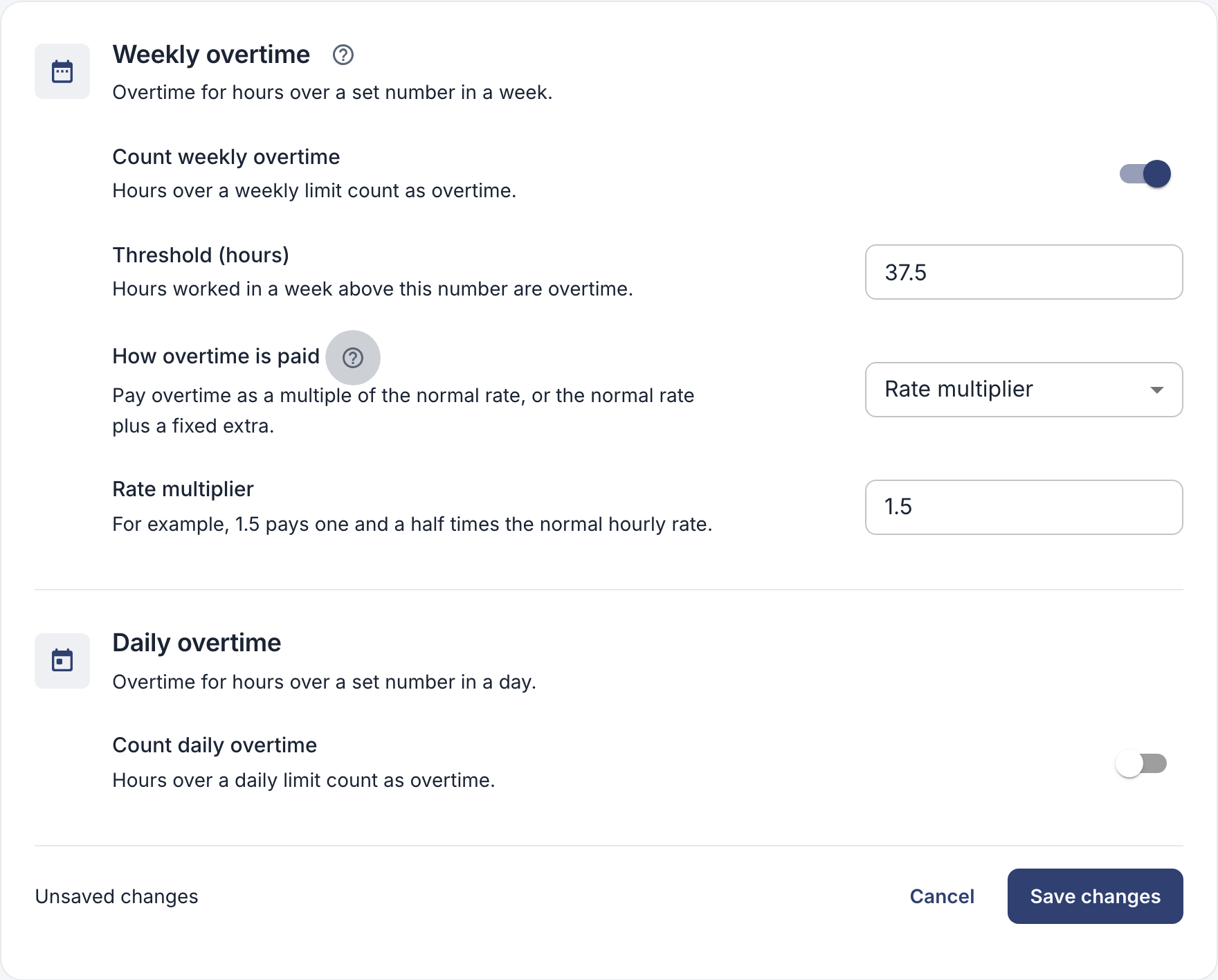
Weekly overtime above 37.5 hours, paid at 1.5 times the normal rate.
Turn overtime into time off
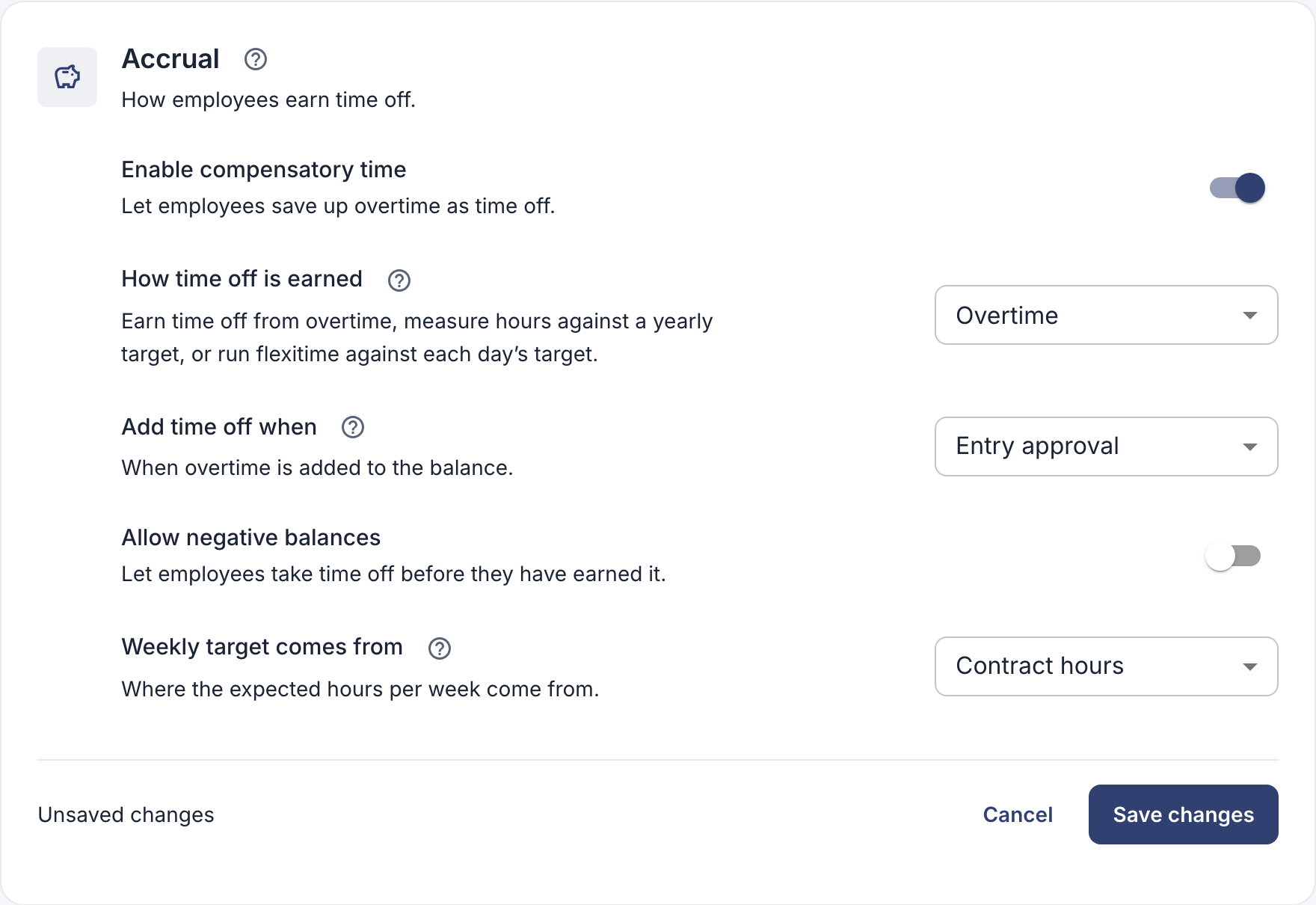
With comp time, overtime goes into a balance that employees can take as leave instead of being paid.
- Go to Settings → Compensatory time.
- Turn on Enable compensatory time.
- Set How time off is earned to Overtime, and click Save changes.
- Go back to Overtime. In each rule that should become time off, turn on the option to save it as time off, and set the time off per overtime hour.
- Click Save changes.