

































Export hours for payroll
Download a month's hours, overtime and leave as an Excel or CSV file for your payroll.
Owners and admins can download a payroll report on the web, at the end of the month, and give it to whoever runs payroll.
Download the file
- Open Analytics in the menu.
- Choose the month: click it to pick another, or use the arrows next to it.
- To export only some people, use the filter button to choose employees, projects or customers.
- Click the download button at the right.

2 The month. 4 The download button.
- Choose the report: Payroll for payroll.
- Click Download Excel or Download CSV.
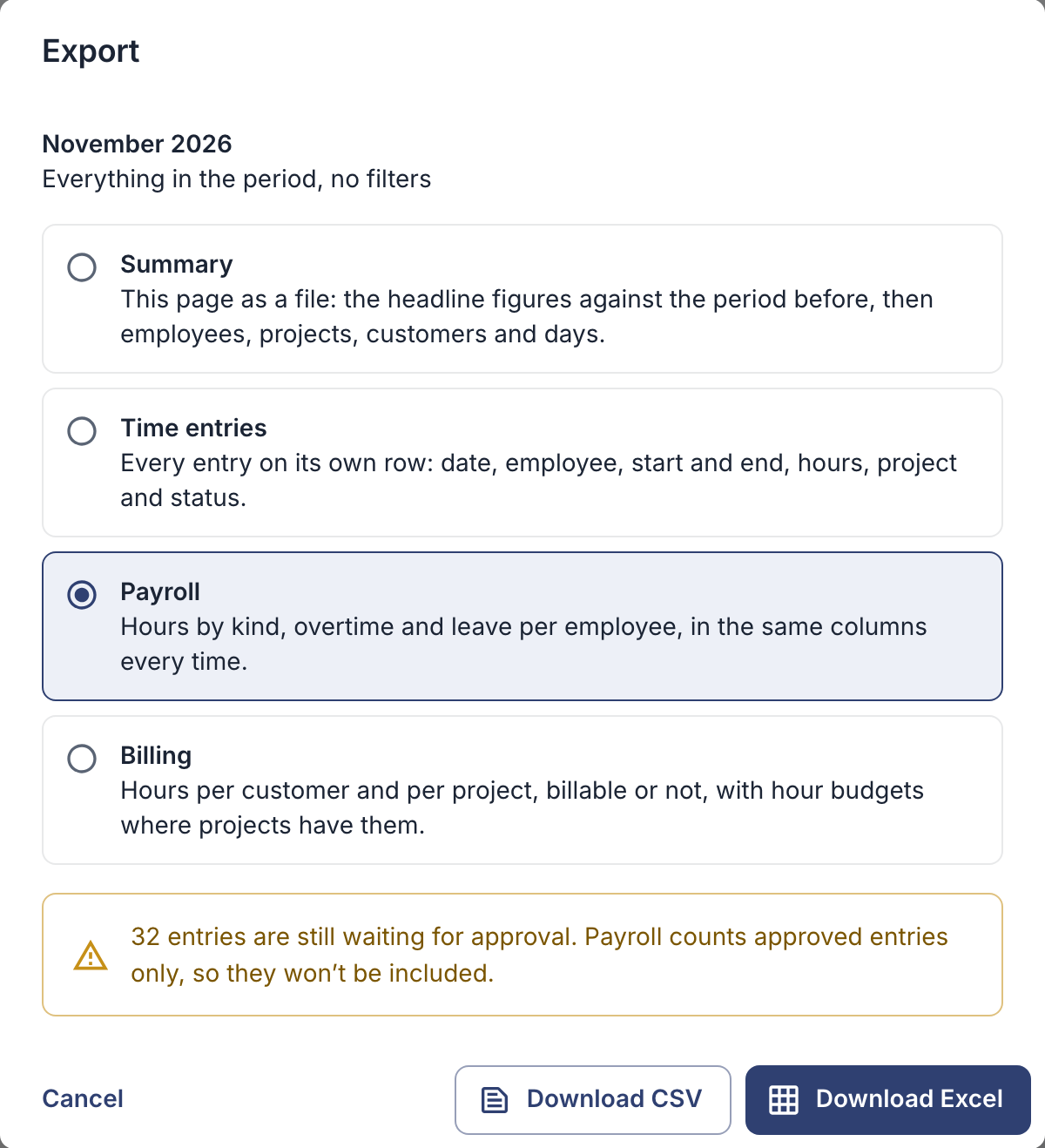
Which report to choose
| Report | What’s in it |
|---|---|
| Payroll | Per employee: worked hours by kind, overtime when your company counts it, and leave in days. Excel or CSV. Owners and admins only. |
| Time entries | Every entry on its own row: date, employee, start and end, hours, project, and status if you approve hours. Excel or CSV. |
| Summary | The totals you see on the page, per employee, project, customer and day. Excel or PDF. |
| Billing | Hours per customer and project, for invoicing. Excel or PDF. |
Good to know
- Approve first. If your company approves hours, the payroll report counts approved hours only, and the window tells you if entries are still waiting. Approve them first (see Approve hours), and don’t set a status filter.
- Hours, not pay. EasyHours doesn’t calculate salaries. The payroll report gives the hours, overtime and leave that your payroll system or accountant turns into pay.
- Hours as decimals. Exports show hours as decimal numbers, for example 7.75 for 7 hours 45 minutes, so they add up easily in a spreadsheet.