

































Clock in and out
Record your working time on your phone or computer, with breaks and the project you work on.
When you clock in, EasyHours starts recording your time. When you clock out, the time is saved as an entry.
Clock in
In the app
- Open the app. It opens on Clock.
- If your company uses projects, check the project and task below the dial. Tap Project / task to choose another.
- Tap Clock in.
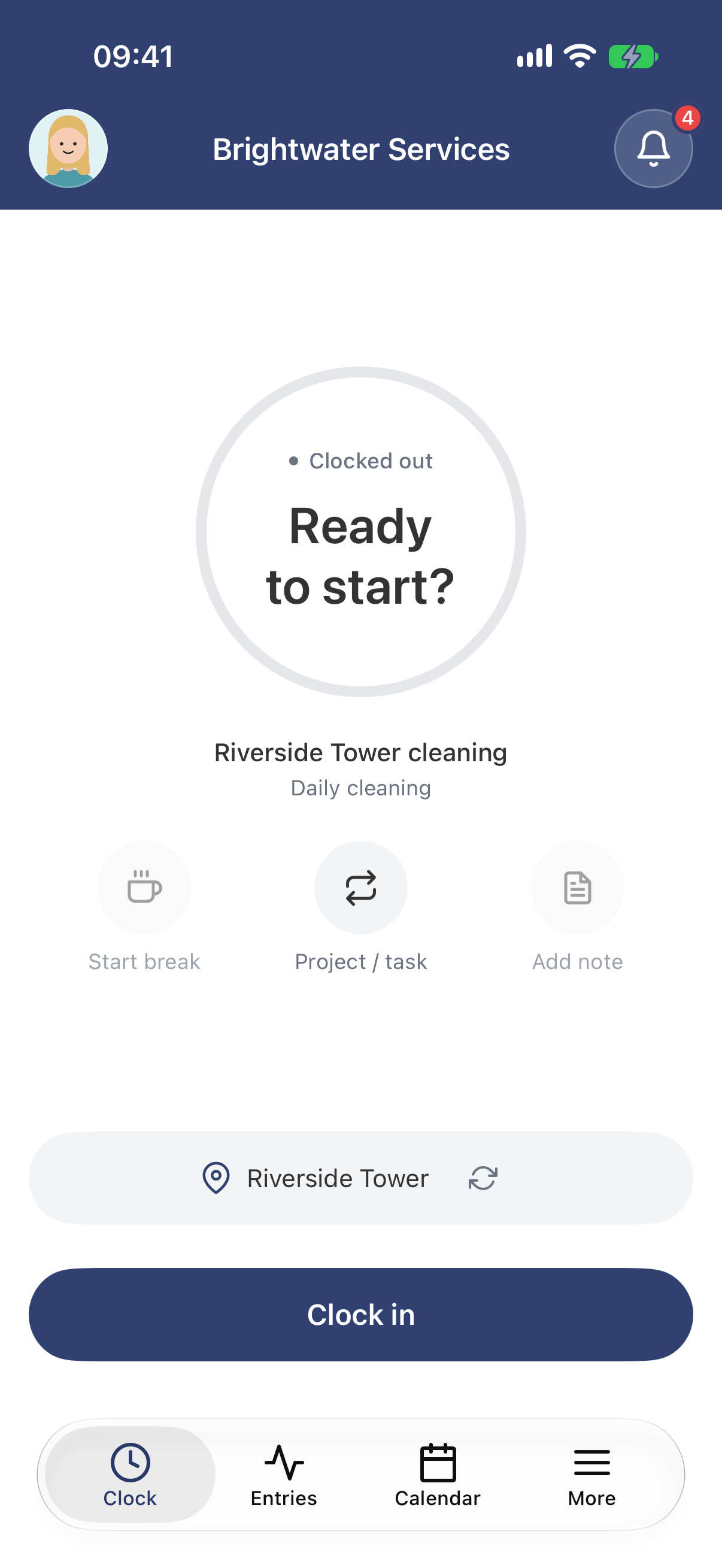
Ready to clock in. The work site you’re at is shown above the button.
On the web
- Open Time clock in the menu.
- If your company uses projects, choose a Project, and a Task if it has tasks. Your company decides whether this is required.
- Click Clock in.
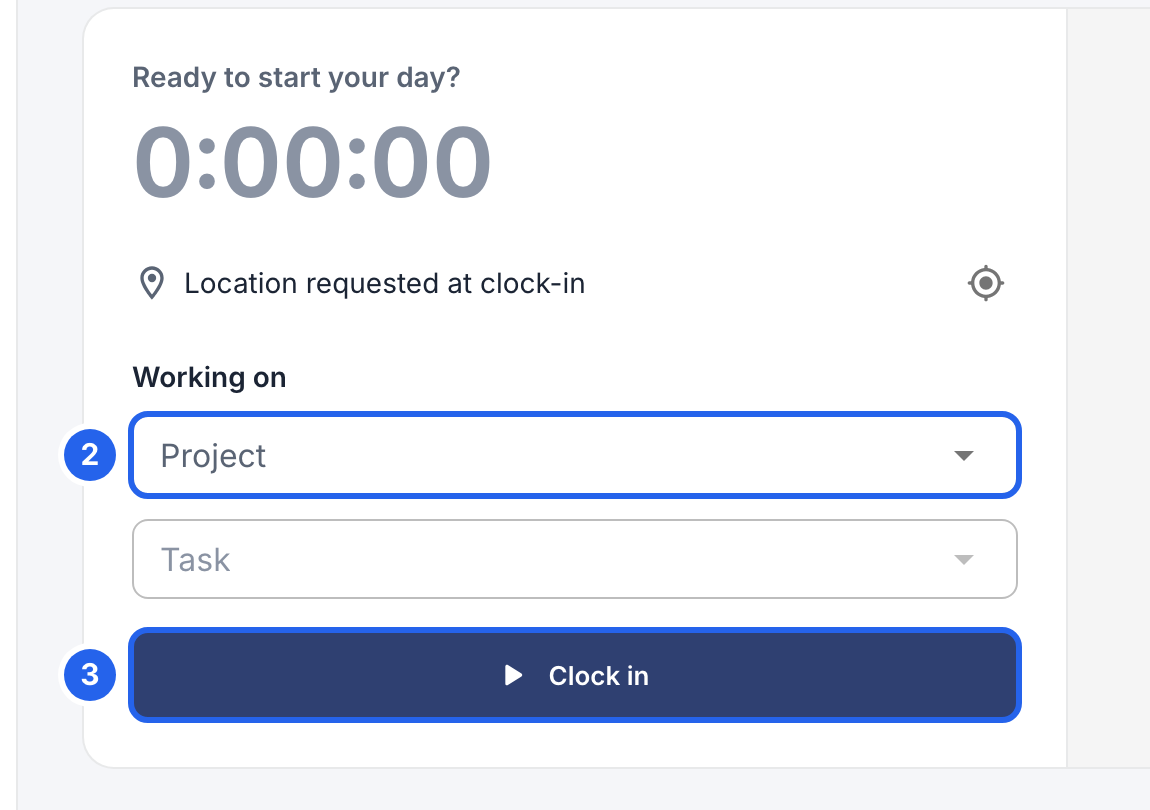
2 The project you work on. 3 Clock in.
Your phone or browser may ask for your location the first time. Allow it if your company checks where you clock in: see Work sites and location.
While you work
The timer shows how long your current entry has been running. From here you can:
- Take a break: tap or click Start break when you stop. When you’re back, tap End break in the app or click Resume work on the web.
- Add a note about what you’re doing: tap Add note, type it and tap Save. On the web, click Add note, then Save note.
- Switch to another project or task: in the app, tap Project / task, then Project or Task, and choose. On the web, click Switch task, choose, and click Switch task again. This ends your current entry and starts a new one, without a gap. End your break first if you’re on one.
In the app
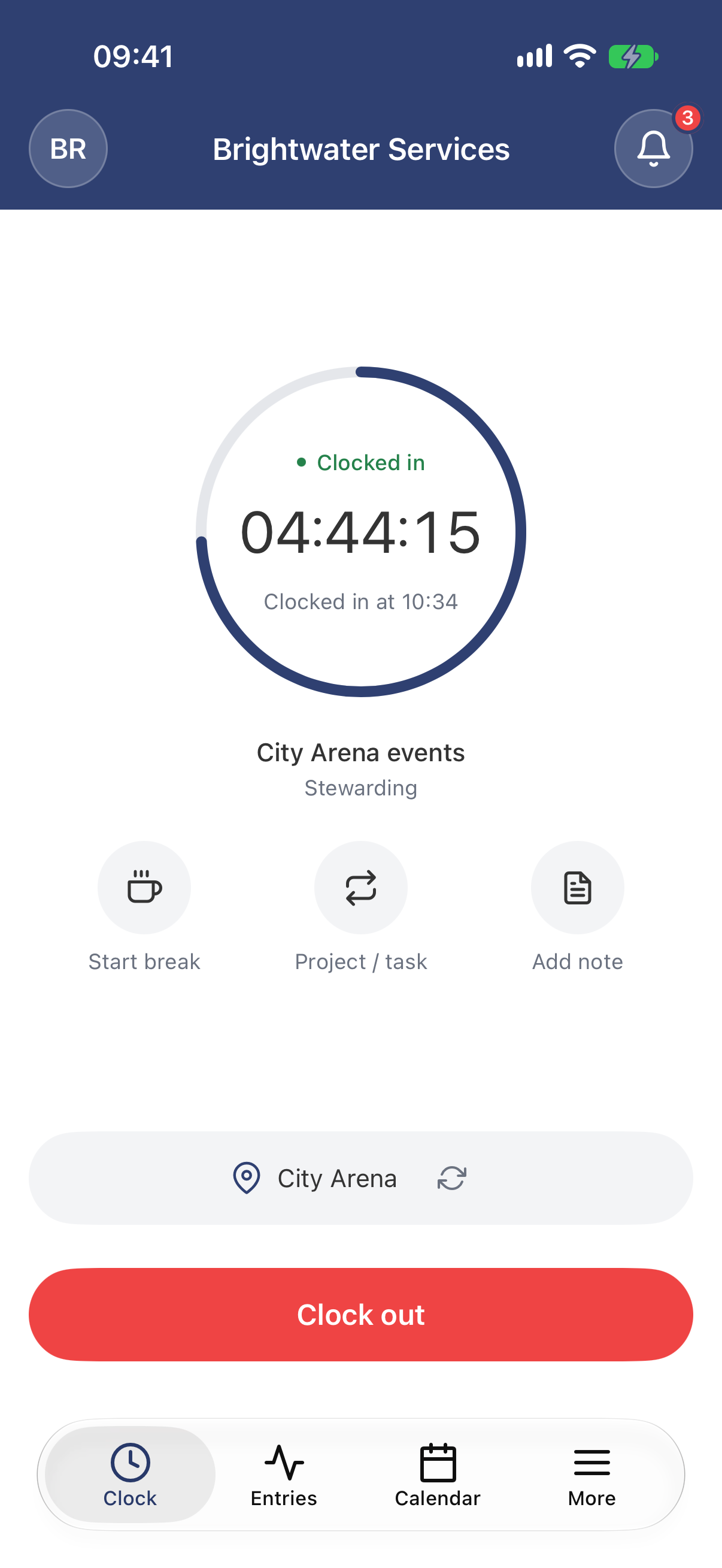
Start break, Project / task and Add note are below the timer.
On the web
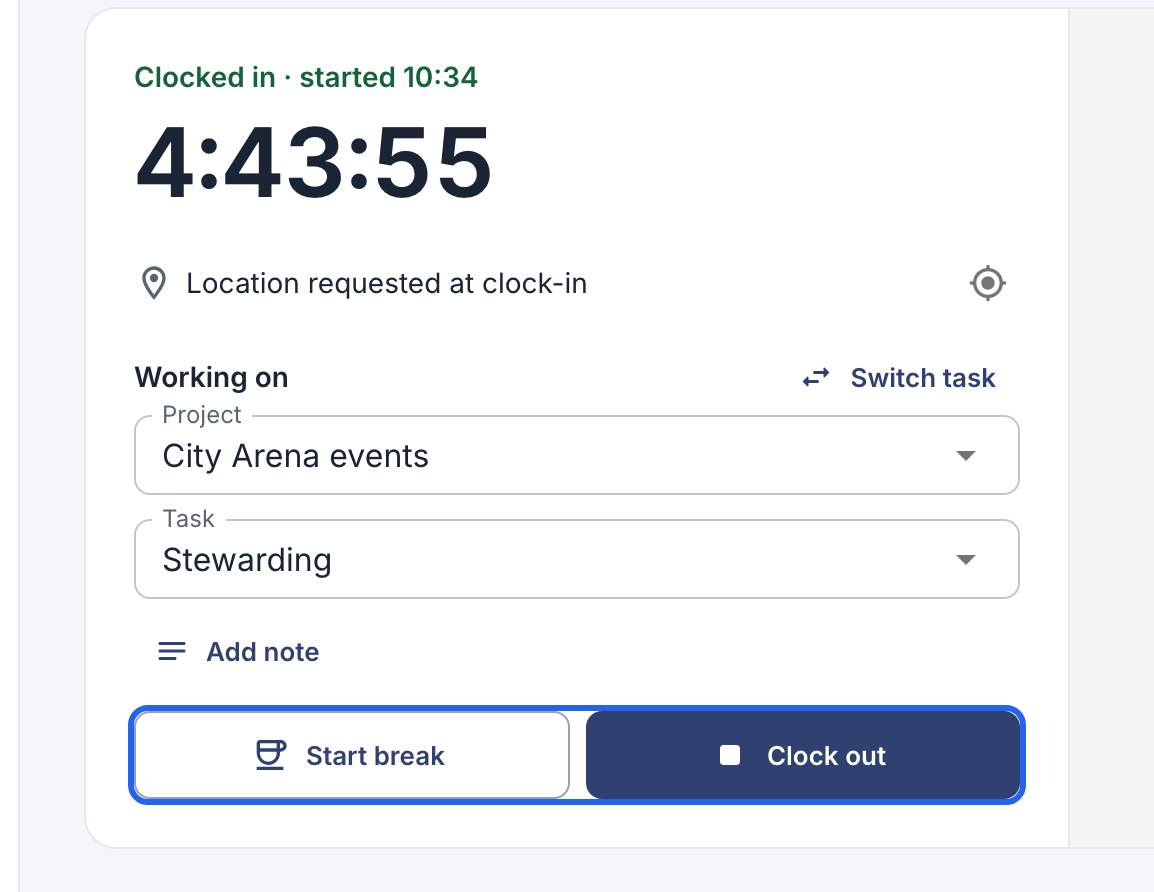
Start break and Clock out at the bottom, Switch task next to the project.
Clock out
Tap or click Clock out at the end of your day. Your time is saved, and you can see it under Entries in the app or My time on the web.

The clock button at the top of every page.
Forgot to clock out? See Fix a forgotten clock-out or add hours.