

































Correct an employee's hours
Fix someone's times, clock them out, or add hours for them.
Owners and admins can correct employees’ hours, on the web or in the app.
Change someone’s entry
On the web
- Open Time entries in the menu. Use the filters to find the person and the date.
- Click the entry, then Edit entry.
- Change the times, break or project.
- Click Save entry.
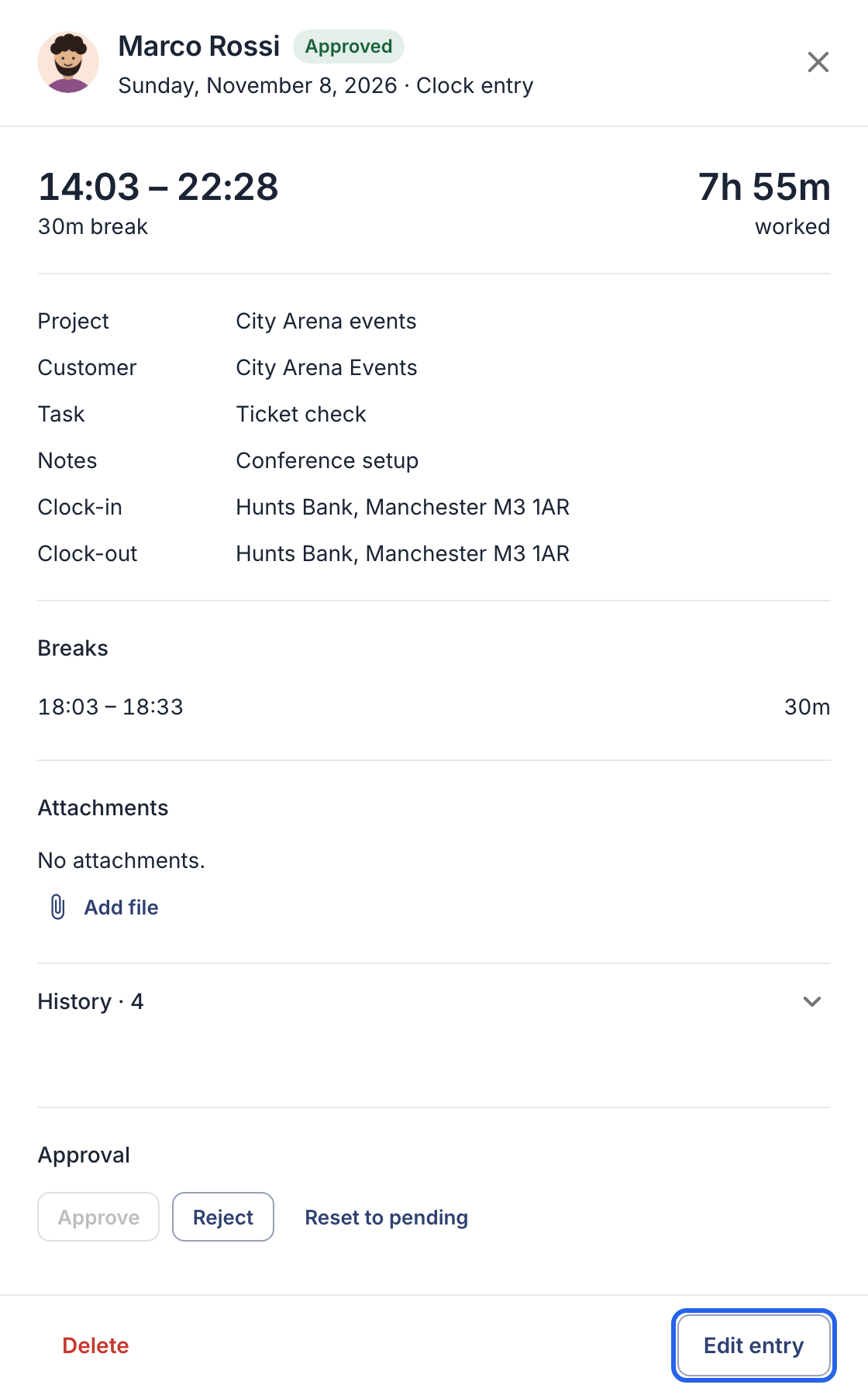
An entry’s details, with Edit entry at the bottom right.
In the app
- Tap More, then Time entries.
- Tap the entry, then Edit.
- Change the times, break or project, and tap Save.
You can also change entries that are already approved. If you want the change reviewed again, click Reset to pending first.
Clock someone out
Someone forgot to clock out and is still clocked in?
- On the web, open Employees, click ⋯ in their row and choose Clock out. In the app, tap More → Employees, the person, then Clock out.
- Confirm. They’re clocked out now.
- Change the end time to when they really stopped, as described above.
Add hours for someone
On the web
- In Time entries, click New entry.
- Choose the employee, and enter the date, times, break and project.
- Click Save entry.
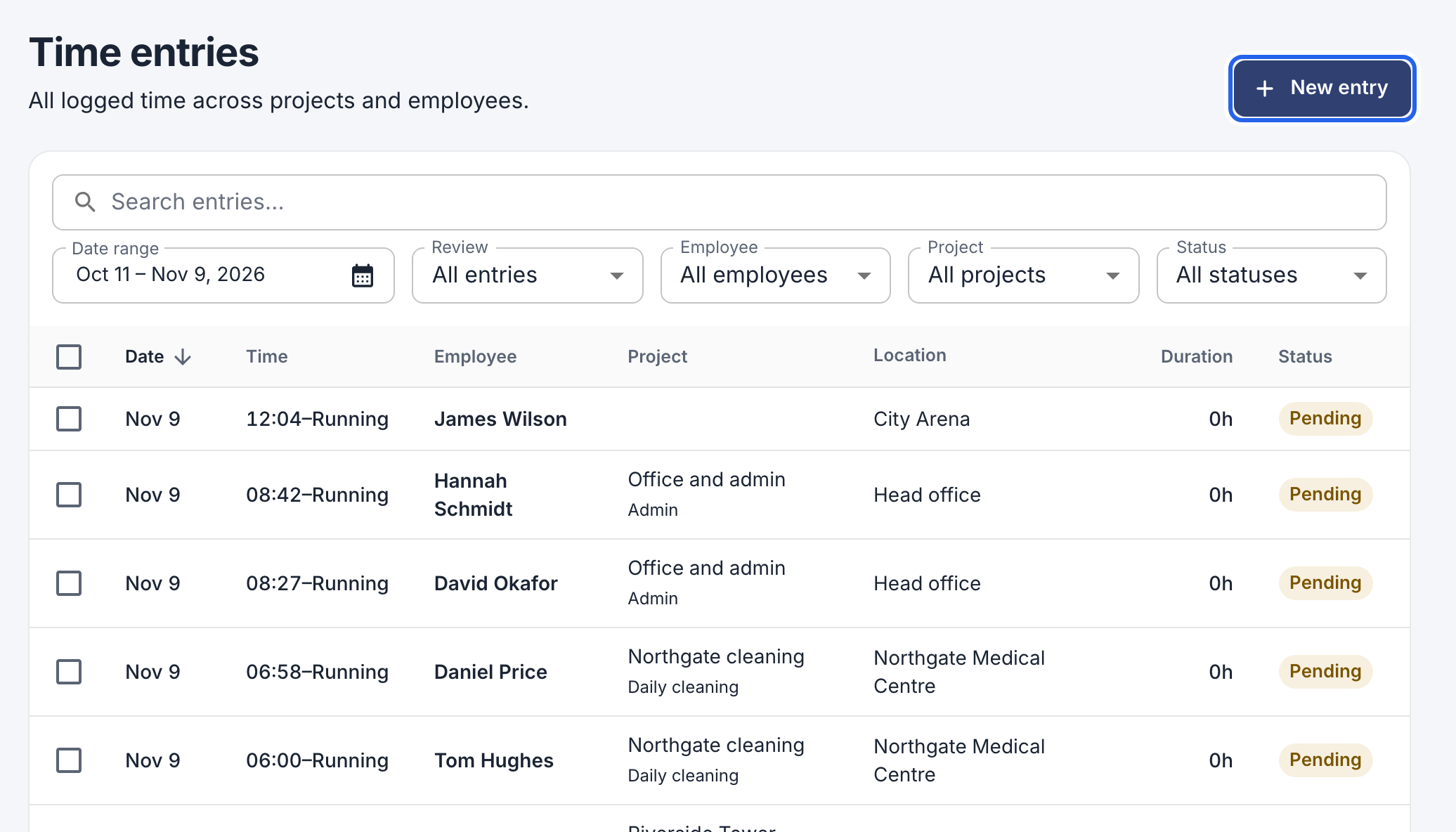
New entry is at the top right.
In the app
- Tap More → Employees, and tap the person.
- Tap Add entry, enter the date, times, break and project, and tap Add.
See who changed what
Every change is kept. Open an entry and expand its history, or see everything in one place under Activity log. Changed entries are marked Edited.
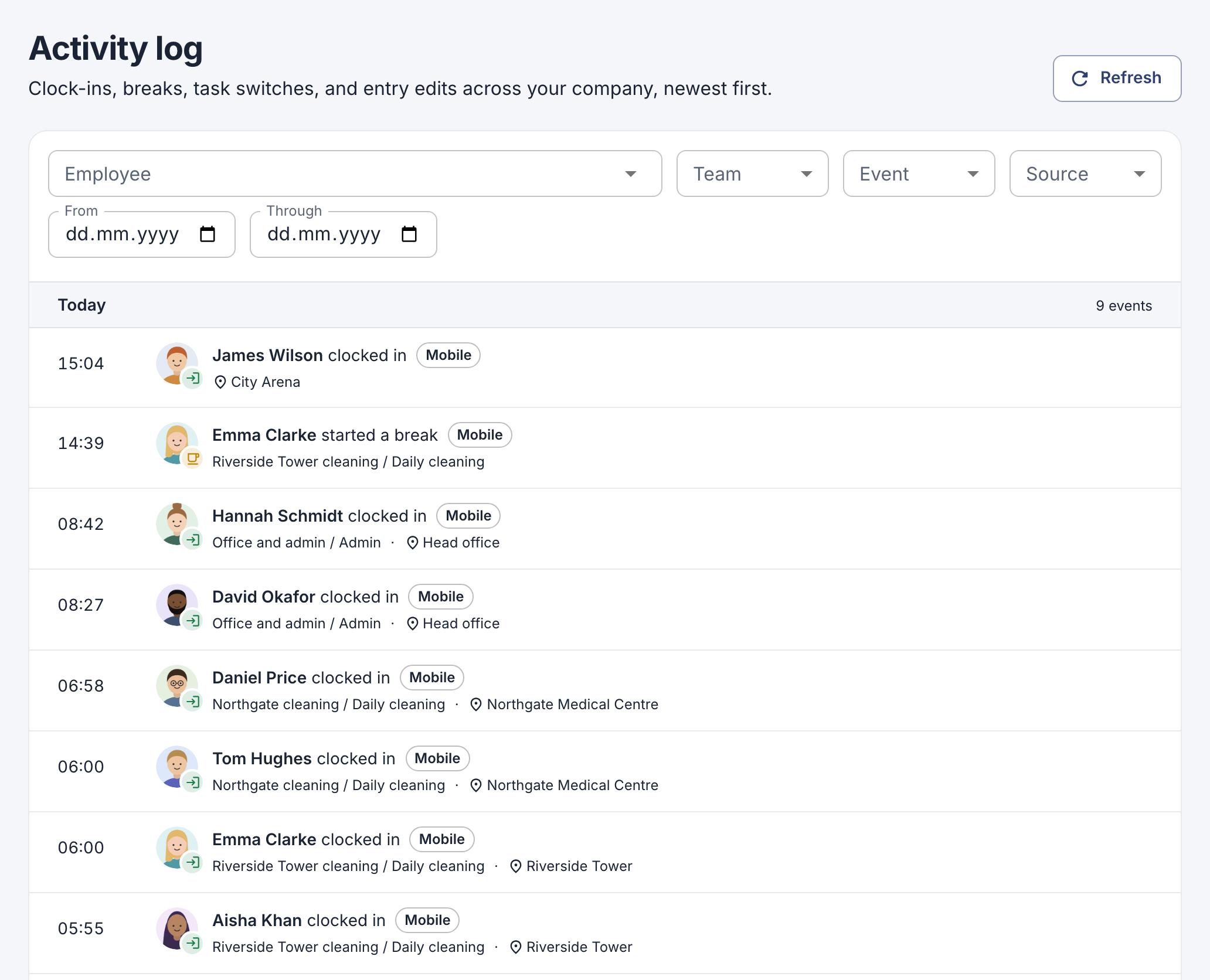
The activity log shows clock-ins, breaks and edits for the whole company. Filter it by employee, team or date.