

































Submit your week
Send your week's hours to your manager for approval, and what to do if they're sent back.
Some companies approve hours one week at a time. If yours does, you submit each week when it’s complete, and your manager approves it.
Before you submit
- Clock out, and check the week’s hours. Fix anything missing or wrong first: see Fix a forgotten clock-out or add hours.
- Submit when the week is over. Once a week is submitted, its hours are locked, so you can’t clock more time in it unless you withdraw it.
Submit a week
In the app
- Tap More, then Timesheets.
- Tap the week.
- Add a note for your manager if something needs explaining.
- Tap Submit week.
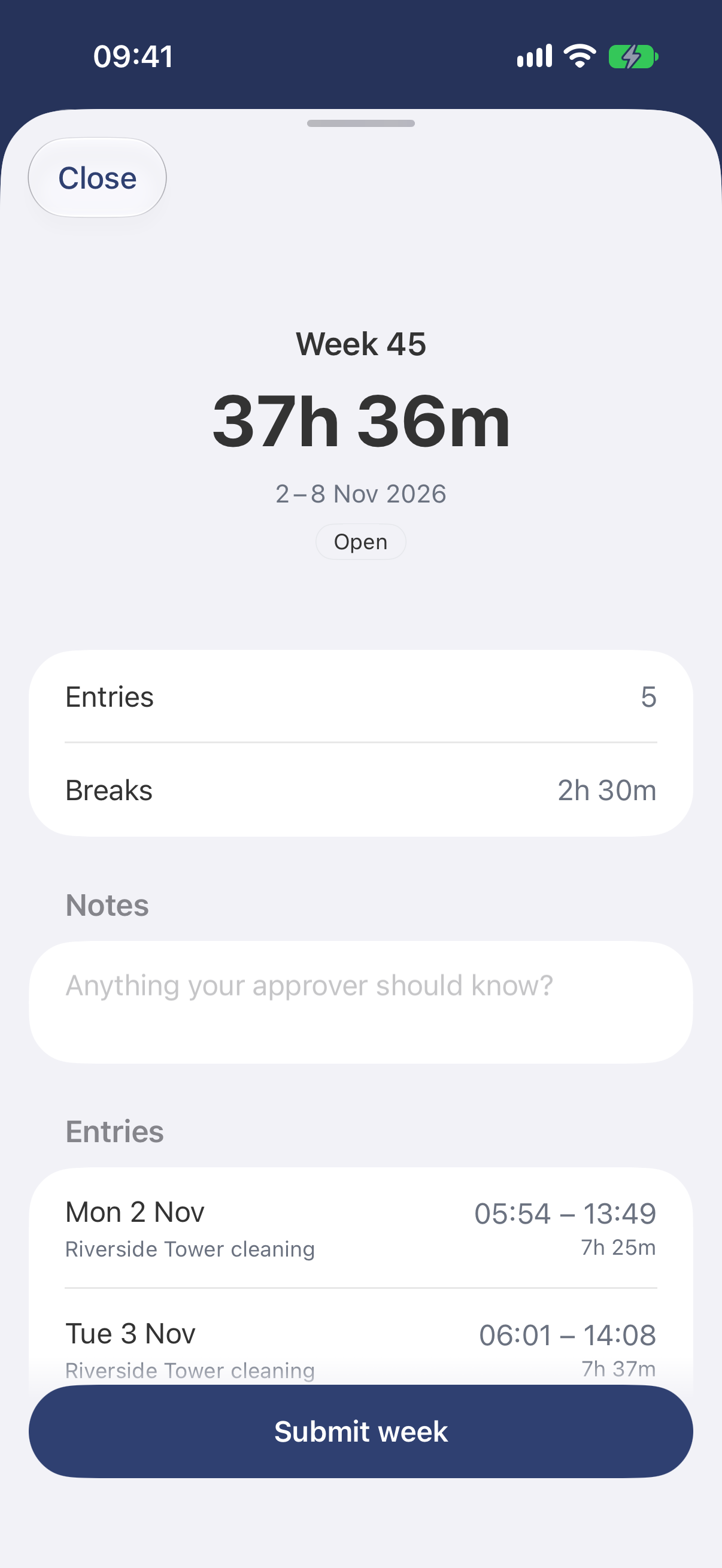
The week’s total, a note for your manager, and Submit week at the bottom.
On the web
- Open My time. Use the arrows to go to the week if needed.
- Click Submit week.
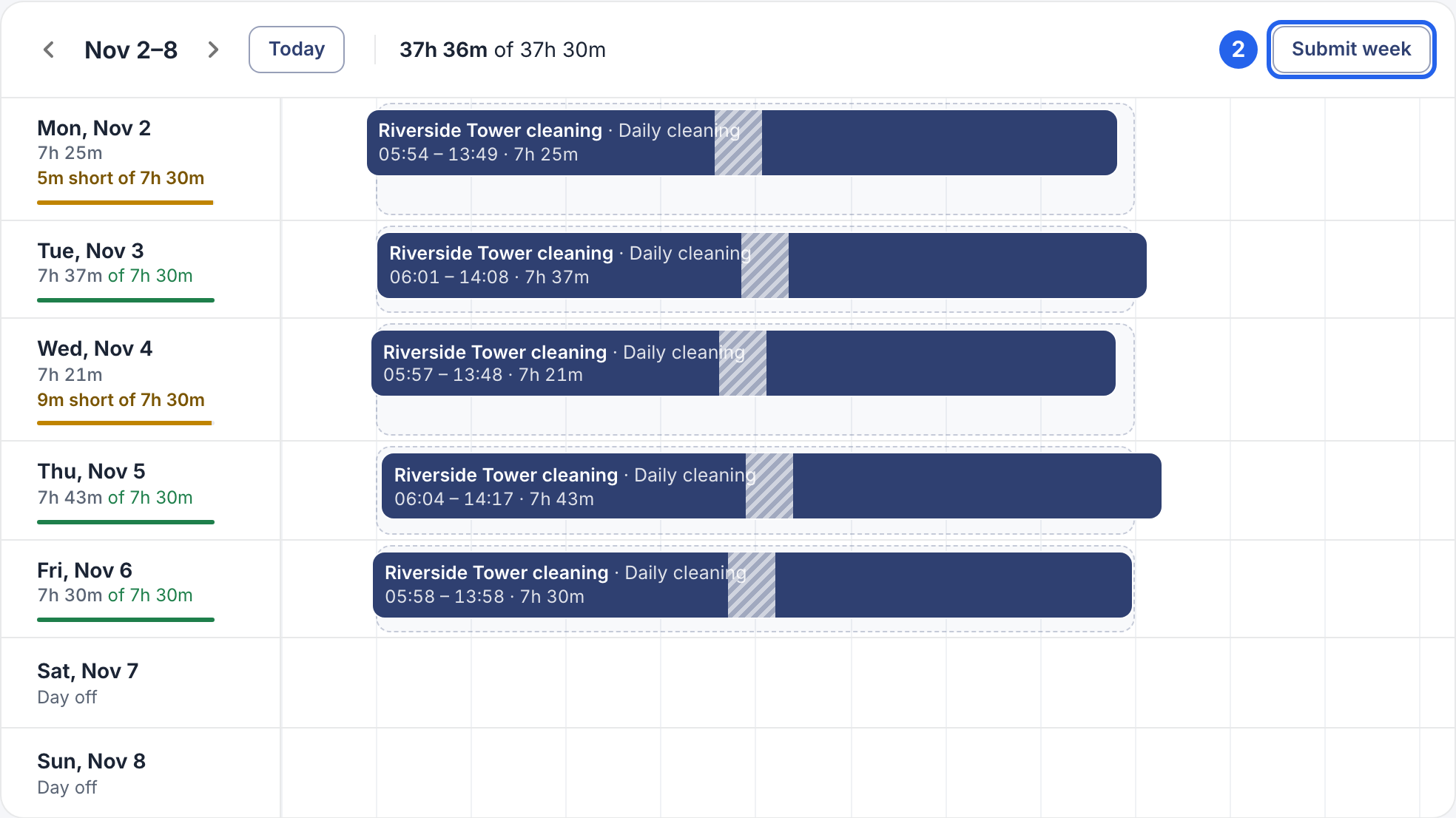
2 Submit week.
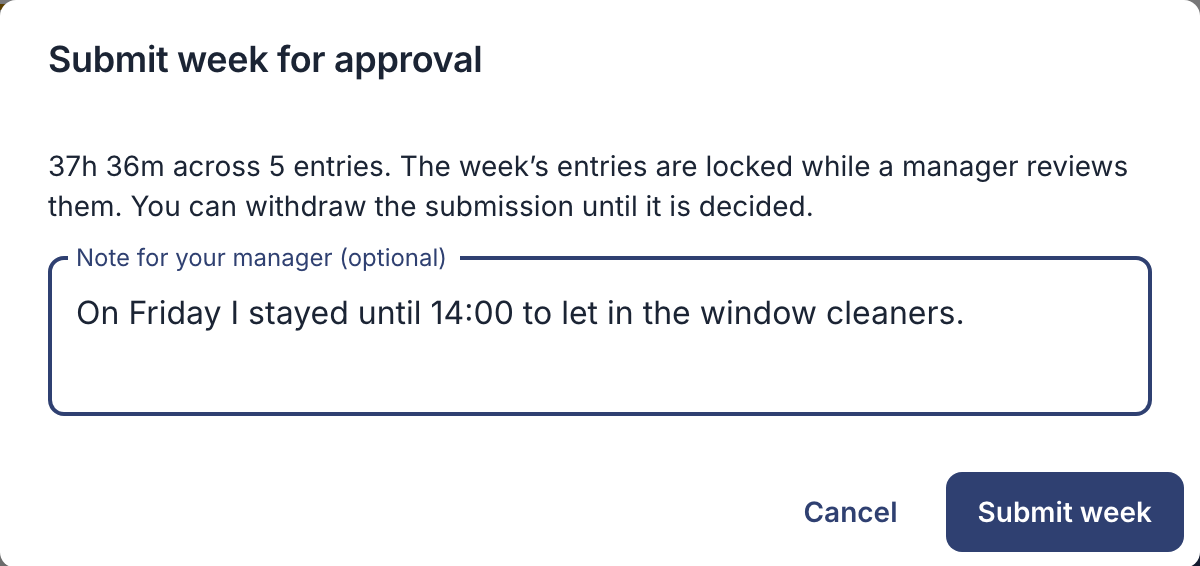
- Add a note for your manager if something needs explaining, and click Submit week.
While your manager reviews it
The week’s hours are locked. Need to change something? Withdraw the week, correct the hours, and submit it again. You can do this until your manager has decided.
- In the app: open the week, tap Withdraw timesheet, and confirm with Withdraw.
- On the web: in My time, click Withdraw for that week.
If the week is sent back
Your manager can reject a week with a reason. You’ll get a notification, and the reason is shown with the week.
- Correct the hours.
- Open the week and click or tap Resubmit week, then confirm.