

































Work sites and location
Why EasyHours asks for your location, and how companies check that people clock in at work.
Why the app asks for your location
Many companies want to know where people clock in and out, for example at which site. EasyHours then saves your location with the clock-in and the clock-out. It doesn’t follow you during the day.
Your phone asks for permission the first time. Allow it, or your company may not let you clock in. If you said no, the app shows Open Settings: tap it and allow location for EasyHours. On a computer, allow location when the browser asks.
If your company checks work sites, also turn on precise location. The app asks for it with Turn on precise location.
For owners and admins
Ask for a location when people clock in
Go to Settings → Clocking in & out → Requirements and turn on Require location. It’s on from the start. People who don’t share their location can’t clock in.
Add your work sites
- On the web, open Company → Locations. In the app: More → Company settings → Geofencing → Company locations.
- Click New location and give the site a name.
- Enter the address and click Find, or click the map to place the pin.
- Set the Clock-in radius, between 100 and 5,000 metres: how far from the pin still counts as on site. Large sites, or places with weak GPS such as tall buildings, need a larger radius.
- Click Create location.
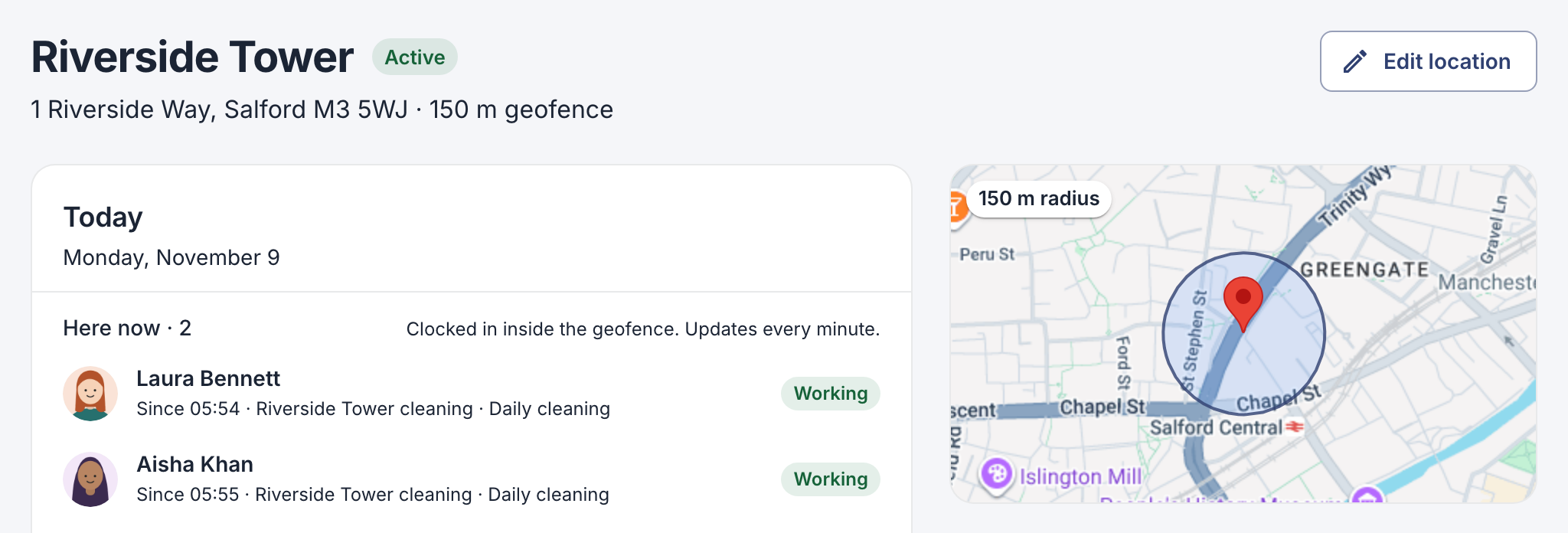
A work site with a radius of 150 m.
Check that people clock in on site
This is called geofencing. Add at least one work site first, then choose where people can clock in.
On the web
- On the Locations page, click the button next to New location. It shows the current choice: Clock in anywhere at first.
- Choose what happens outside a work site:
- Flag clock-ins elsewhere: people can still clock in, and the entry is flagged for admins.
- Clock in only at company locations: people can only clock in at a work site.
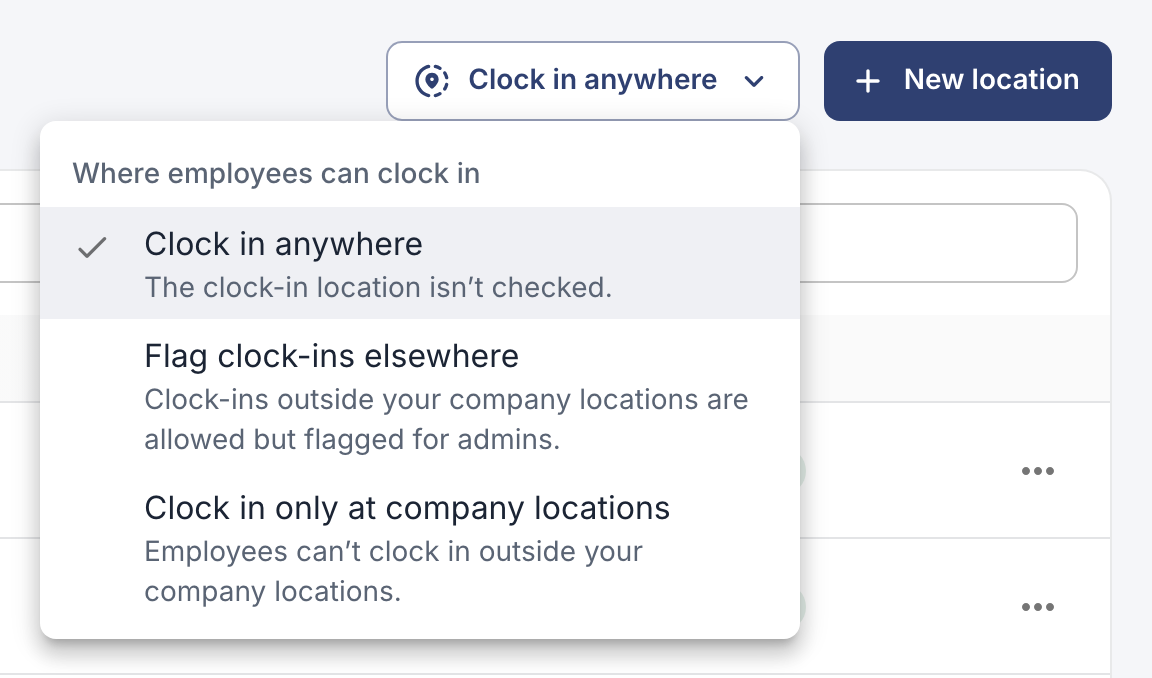
The same choice is under Settings → Clocking in & out → Requirements → Where employees can clock in.
In the app
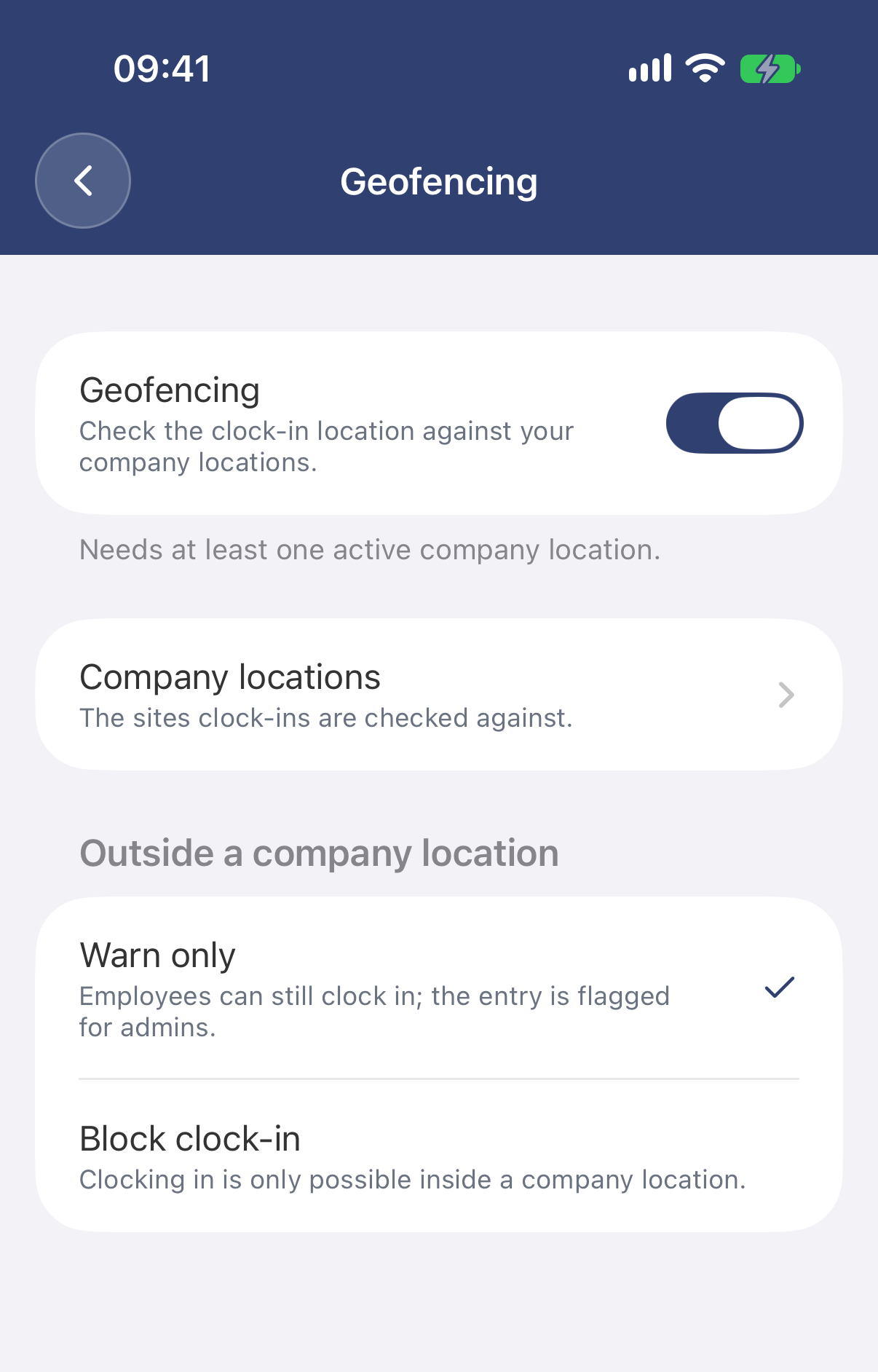
- Tap More → Company settings → Geofencing, and turn it on.
- Under it, choose what happens outside a work site. Block clock-in is chosen as soon as you turn it on:
- Warn only: people can still clock in, and the entry is flagged for admins.
- Block clock-in: people can only clock in at a work site.
Being away from a work site never stops anyone from clocking out, so nobody gets stuck clocked in. When someone clocks out away from a work site, owners and admins can get an alert. Choose how under Settings → Notifications → Team alerts.
If it doesn’t work
- “You’re outside an allowed work location”: you’re too far from the site, or the phone’s location is inaccurate. Step outside for a moment, check that precise location is on, or ask your admin to make the radius larger.
- Your company requires your location: location is off for EasyHours. Turn it on in your phone’s settings, or allow it in the browser.