

































Fix a forgotten clock-out or add hours
Correct the times of an entry, or add hours you didn't clock.
Forgot to clock out, or clocked in late? You can correct your own hours, as long as your company allows it and the hours haven’t been approved yet.
Forgot to clock out
If you’re still clocked in, clock out first (see Clock in and out). Then change the end time to when you really stopped, as described below.
Change the times of an entry
In the app
- Tap Entries, and tap the day at the top.
- Tap the entry, then tap Edit.
- Change the start, end or break.
- Tap Save.
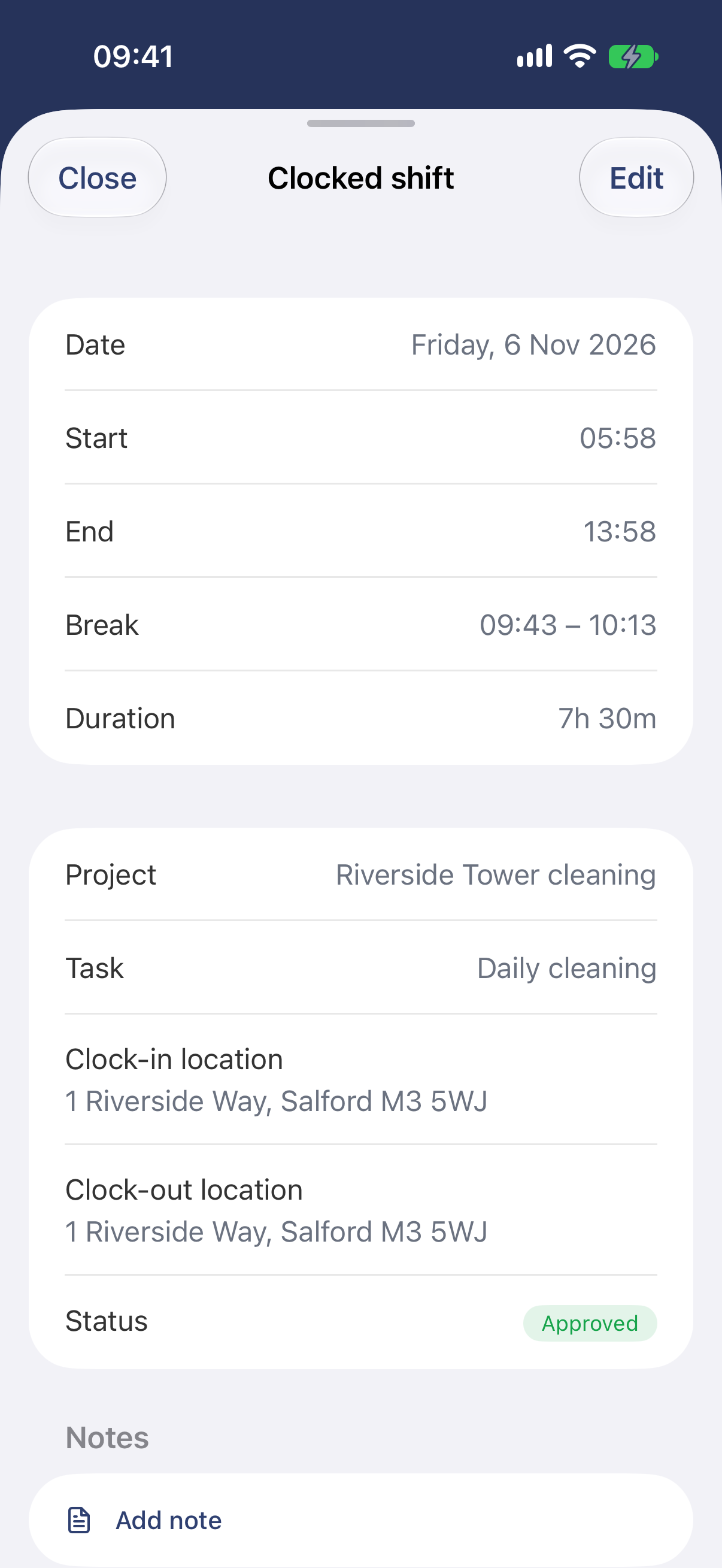
Tap Edit at the top right.
On the web
- Open My time in the menu.
- Click the entry.
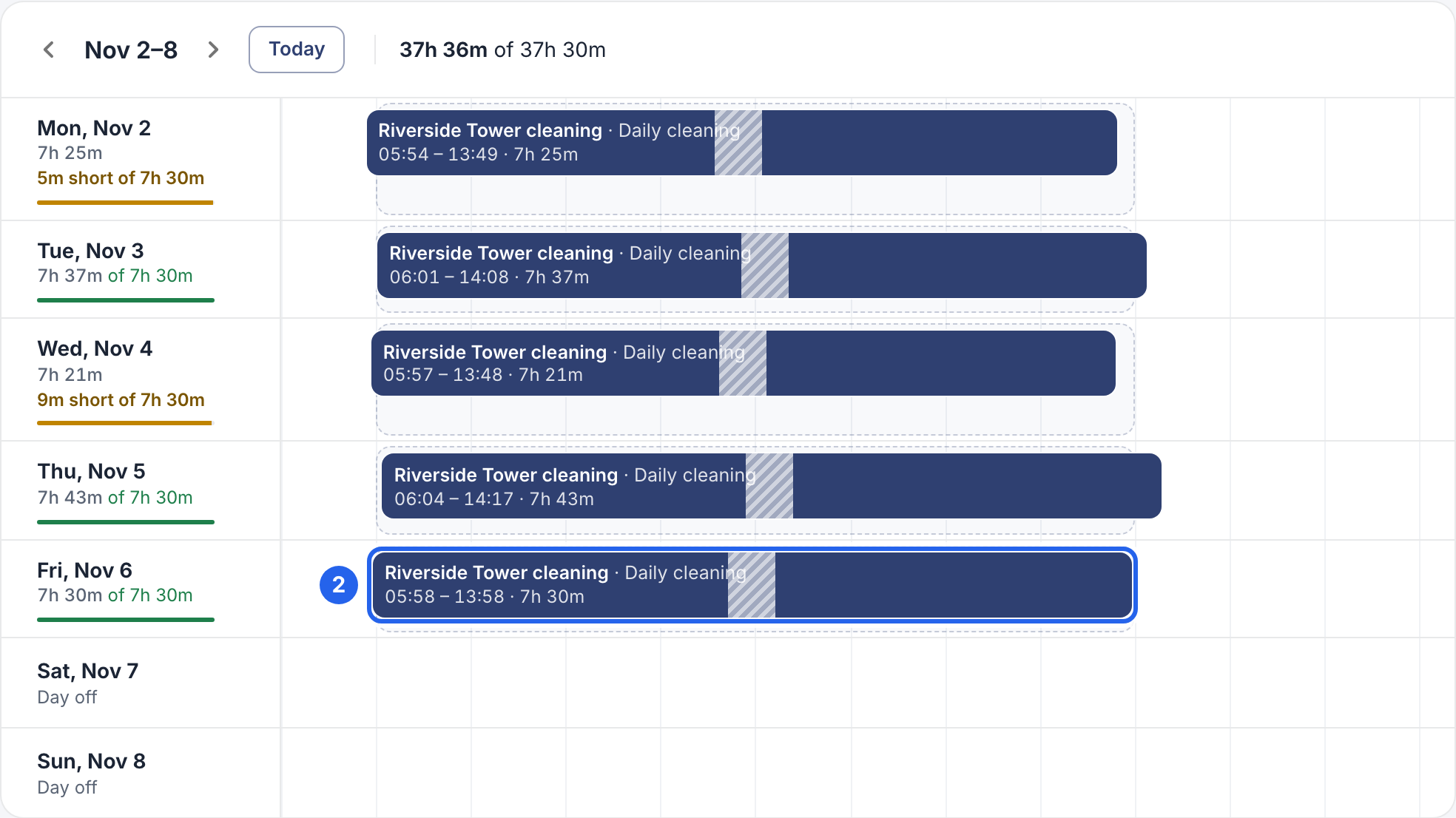
2 Each bar is one entry. Use the arrows at the top to go to another week.
- Click Edit entry.
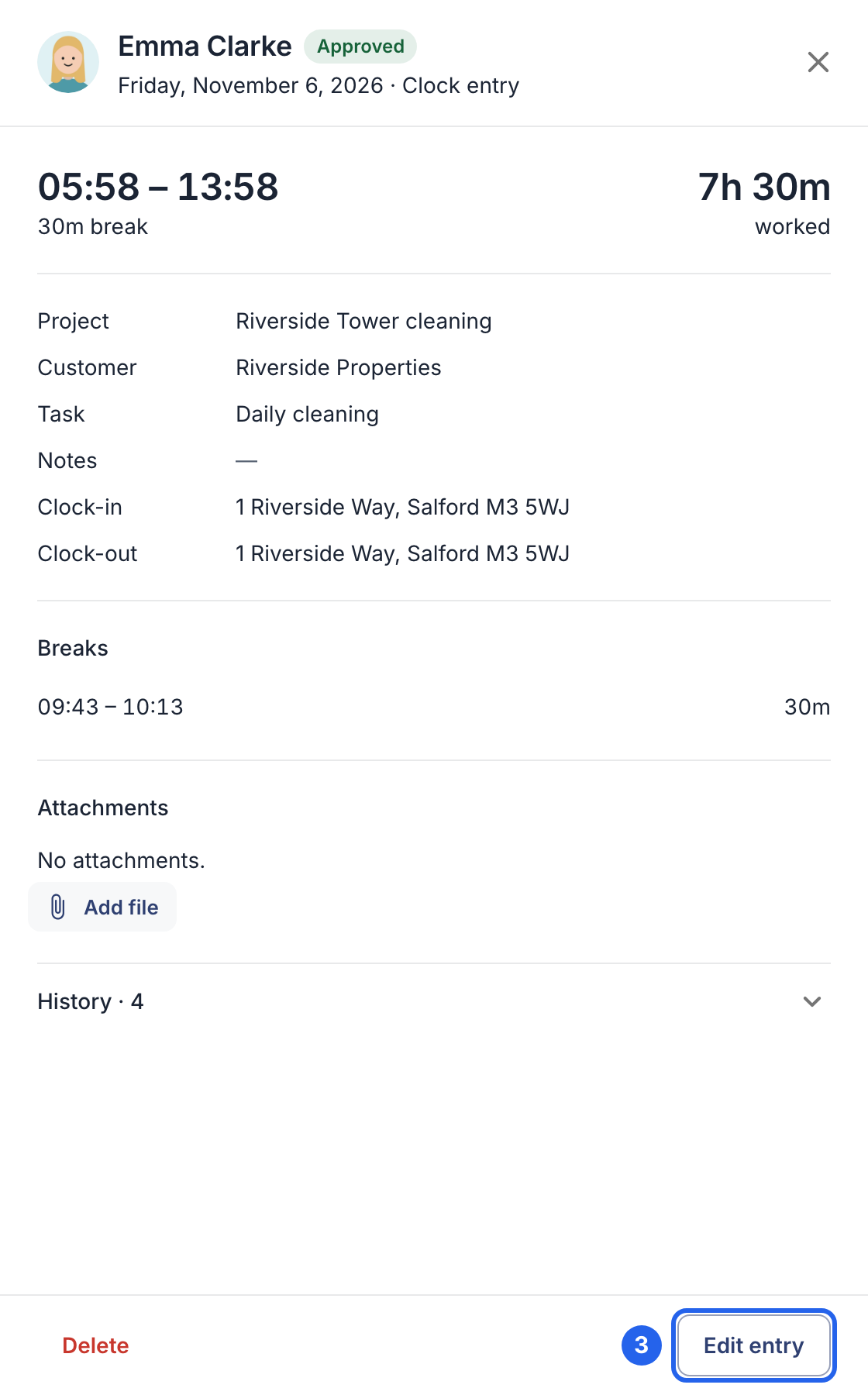
3 Edit entry.
- Change the Start, End or break times. The hours worked update as you type.
- Click Save entry at the bottom.
Add hours you didn’t clock
In the app
- Tap Entries and choose the day.
- Tap +, then Add entry.
- Enter the start and end, any break, and a project if your company uses projects.
- Tap Add.
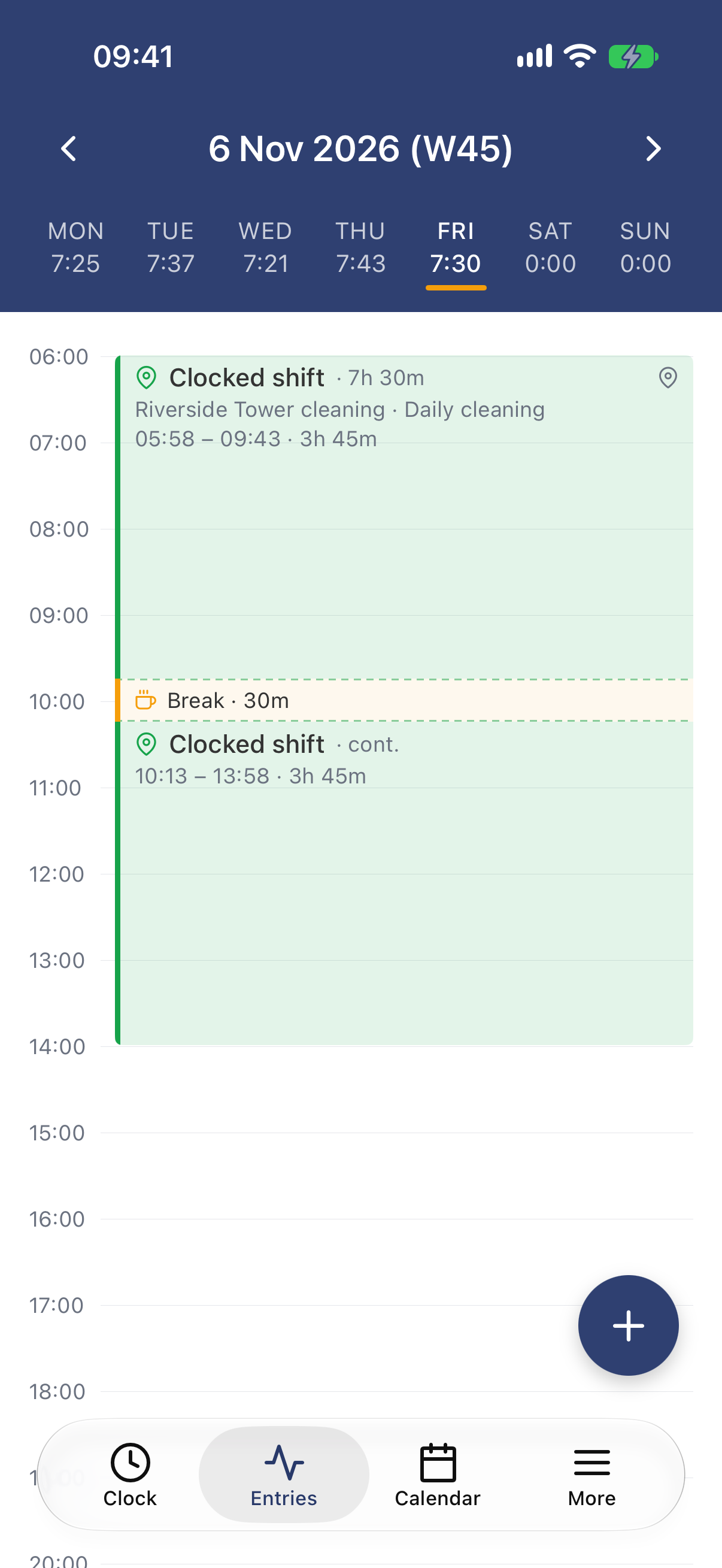
The day’s entries, with + at the bottom right.
To repeat an earlier day, tap + and choose Copy previous day, or the option to copy the same day last week. The entries are copied straight away; check them afterwards. Entries that would overlap are skipped.
On the web
- Open My time.
- Click an empty spot on the day you worked.
- Enter the start and end, any break, and a project if your company uses projects.
- Click Save entry.
Good to know
- Your manager sees what you changed. Edited entries are marked Edited, with the original times in the history.
- Approved hours are locked. Once your manager has approved an entry, you can’t change it: ask your manager or admin to correct it. If you’ve submitted the week, withdraw it first (see Submit your week).
- Your company decides what you may do. If there’s no Edit entry button, the time fields can’t be changed, or saving is refused, ask your manager or admin to make the change.