

































Approve hours
Choose how hours are approved, then approve or reject your team's time entries or weekly timesheets.
Approving hours means checking them before payroll. Once approved, hours are locked, so nobody changes them by accident. Owners, admins and team managers who approve hours can do this; team managers see only their own teams.
Choose how hours are approved
An owner or admin chooses this for the whole company. On the web:
- Go to Settings → Permissions & approvals, and open the Approvals tab.
- Choose the Approval method, and click Save changes:
- No approval: hours aren’t reviewed.
- Individual time entries: you approve each entry, or all of a person’s entries at once.
- Timesheets: employees submit each week, and you approve the week (see Submit your week).
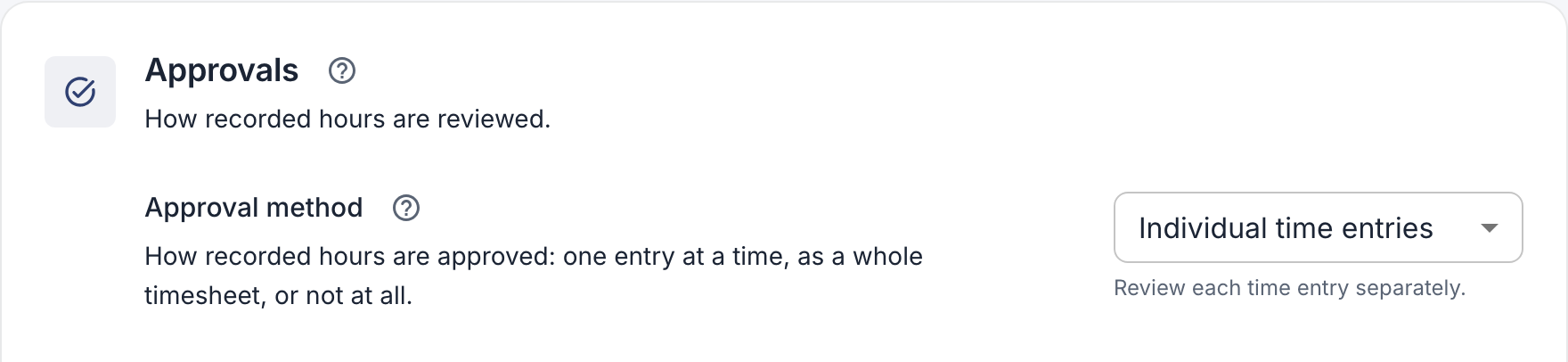
In the app: More → Company settings → Features → Hours approval.
Approve time entries
On the web
- Open Approvals in the menu. The number next to it shows how many are waiting.
- Entries are grouped by week and person. Click the arrow at the end of a row to see each entry.
- Click the approve button to approve all of that person’s waiting entries for the week, or open the row and approve or reject entries one by one.
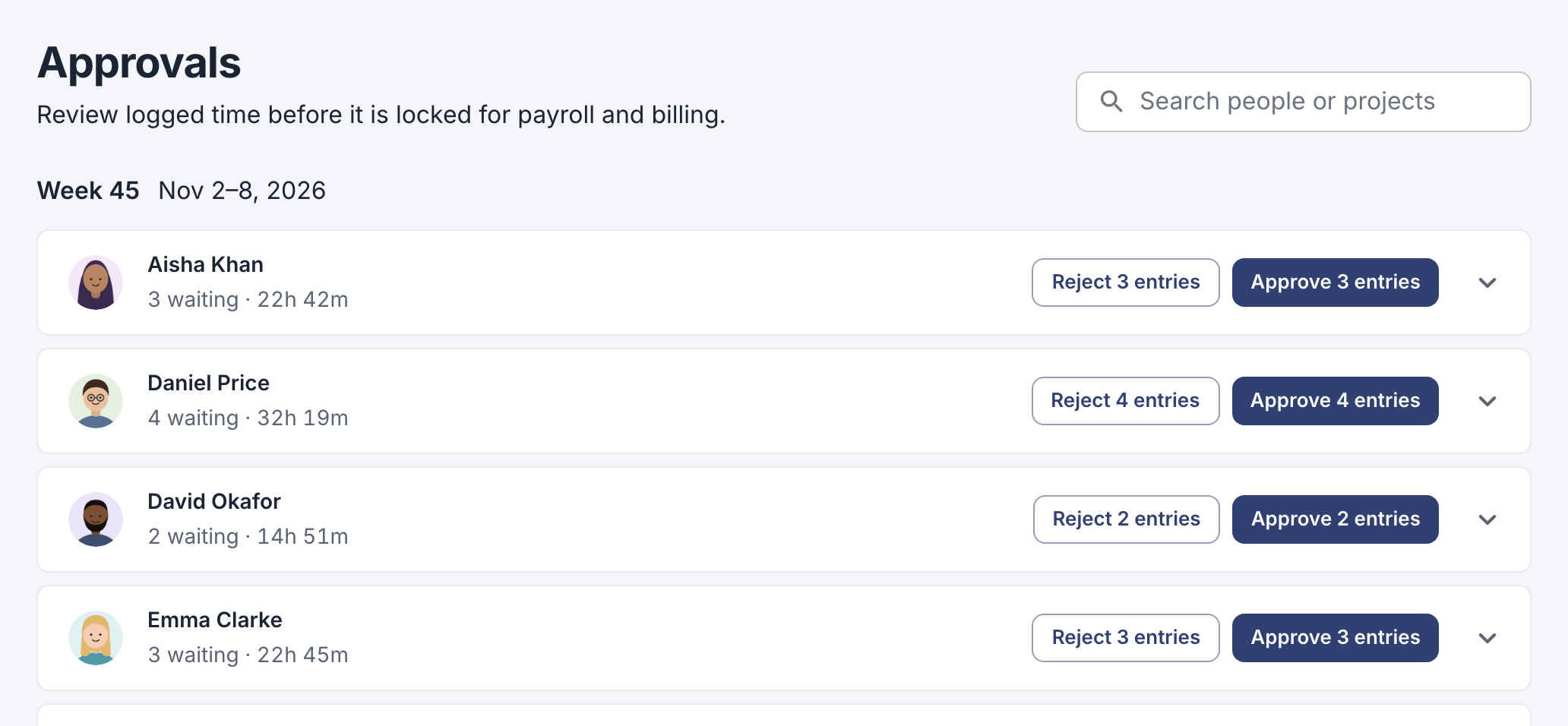
Each row shows a person’s waiting entries and their hours for the week.
In the app
- Tap More, then Time entry approvals.
- Tap an entry. You see its times, breaks, project and where it was clocked.
- Tap Approve or Reject. The next entry opens straight away; tap Skip to leave one for later.
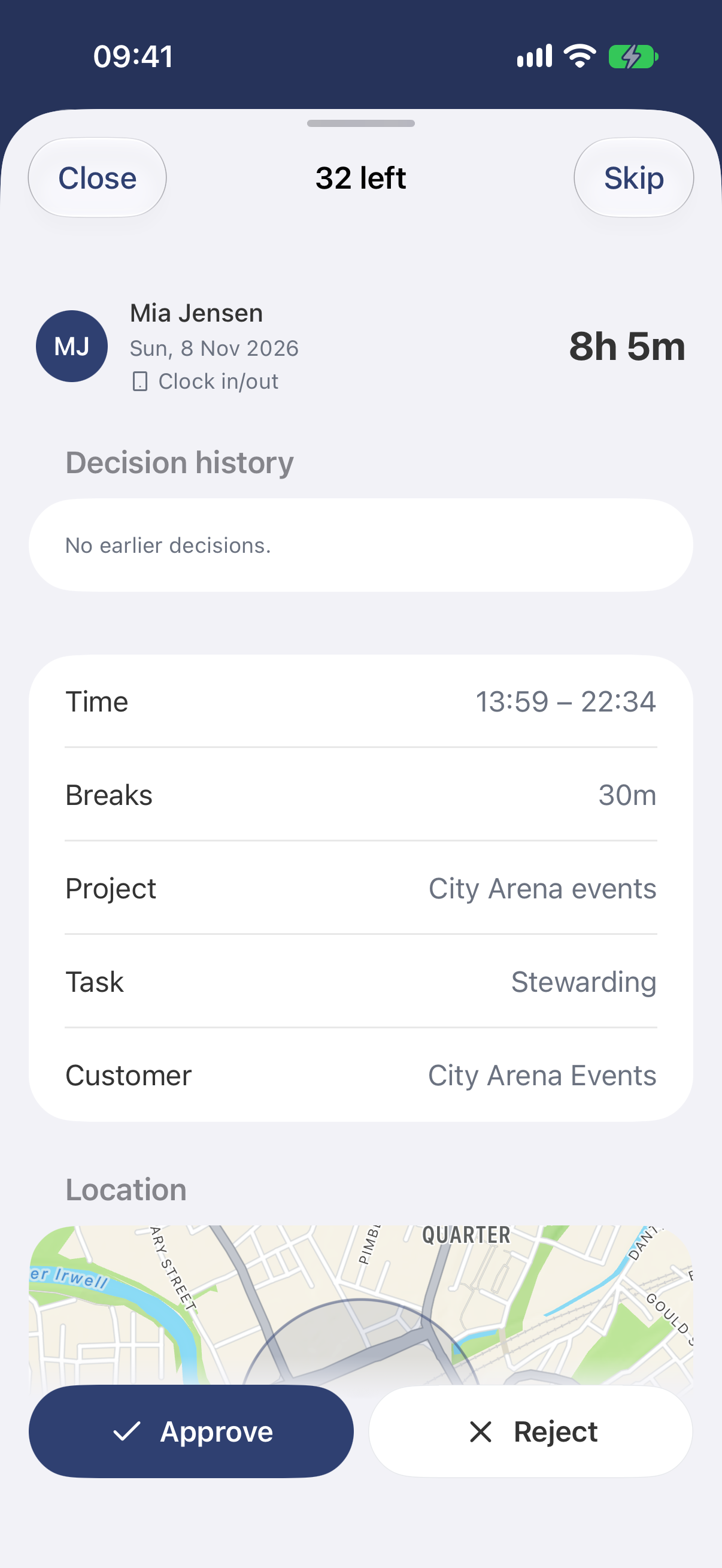
One entry at a time, with how many are left at the top.
When you reject, write a short reason. The employee sees it. If your company lets employees edit their hours, they can correct the entry and it comes back to you; otherwise, an admin corrects it.
Approve weekly timesheets
If your company uses timesheets, Approvals lists the weeks employees have submitted. In the app, it’s Timesheet approvals.
- Open a week to see its totals and the employee’s note. On the web you also see its entries.
- Click Approve week, or Reject week with a reason. In the app, tap Approve and confirm, or Reject and enter a reason.
Team managers can’t approve their own week; an owner or admin does that.
Approved a week too soon? On the web, open the person under Employees, go to their Timesheets tab, open the week and click Reopen week. In the app, choose Approved in Timesheet approvals, open the week and tap Reopen for editing. The employee can then change the hours and submit again.