

































Roles, teams and managers
What owners, admins, viewers, team managers and employees can do, and how to set up teams.
Everyone in EasyHours has a role that decides what they can see and change. On top of that, you can make someone the manager of a team, so they approve that team’s hours or leave.
The roles
| Role | What they can do |
|---|---|
| Owner | Everything, including billing. Only the owner can make someone an admin. There’s one owner per company. |
| Admin | Manage employees, teams, projects, settings, and everyone’s hours and leave. Not billing, and not other admins. |
| Viewer | See the company’s hours, leave and reports, but change nothing. A viewer doesn’t track their own time. Useful for a bookkeeper. |
| Employee | Track their own time, request leave and see their own schedule. |
A team manager is an employee who also has permissions for one team, such as approving its hours. See below.
Change someone’s role
On the web
- Open Employees and click the person.
- On the Profile tab, click Edit on the Details card.
- Choose the Workspace role, and click Save changes.
In the app
- Tap More → Employees, and tap the person.
- Under Role, choose Member (employee), Viewer or Admin.
- Only the owner can make someone an admin, or take it away.
- A viewer must have signed in at least once. People who only use the kiosk can’t be viewers.
- To make an admin a viewer, make them an employee first.
Set up a team
Teams group people, for example per site or department. Owners and admins set them up, and team managers who may manage members add and remove people. Someone can be in several teams.
On the web
- Open Company → Teams.
- Click New team, give the team a name, and click Create team.
- On the members tab, choose someone under Add a member and click Add. Repeat for everyone in the team.
- On the managers tab, click Add manager and choose the person. All permissions are ticked: untick what they shouldn’t do, and click Add manager.
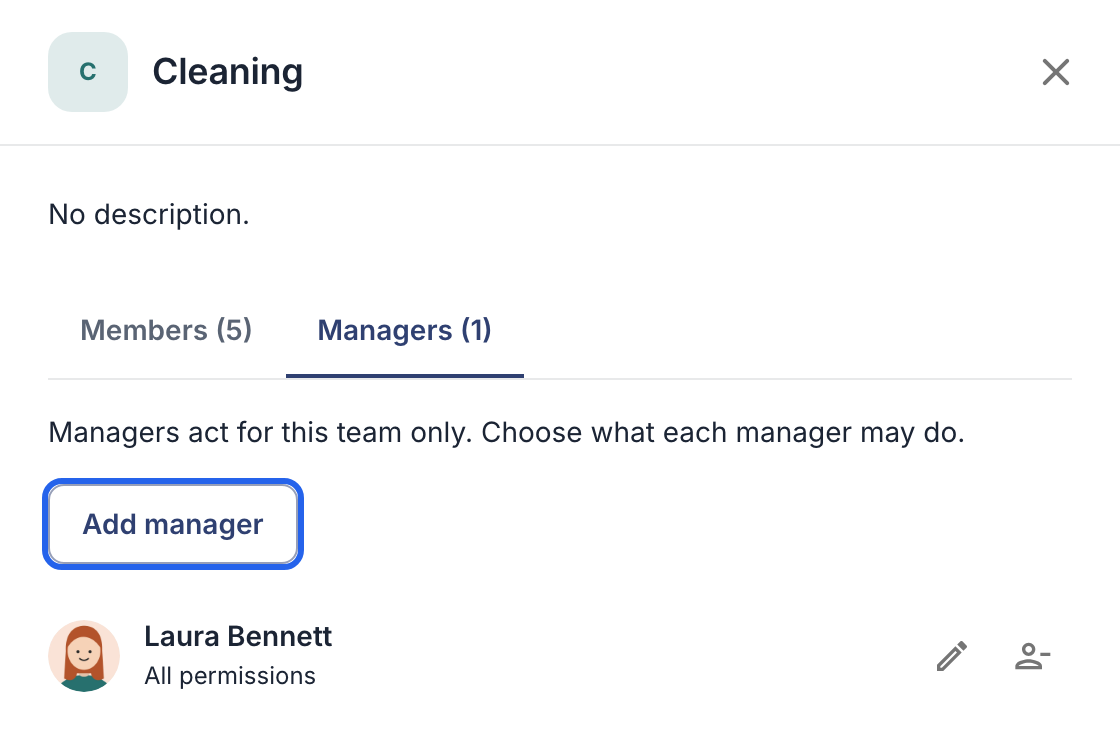
The managers tab, with Add manager.
In the app
- Tap More → Teams → New team, enter the name and tap Create.
- In the team, tap Add people, select people and tap Add.
- Tap Add team manager, choose the person and their permissions, and tap Add.
What a team manager can do
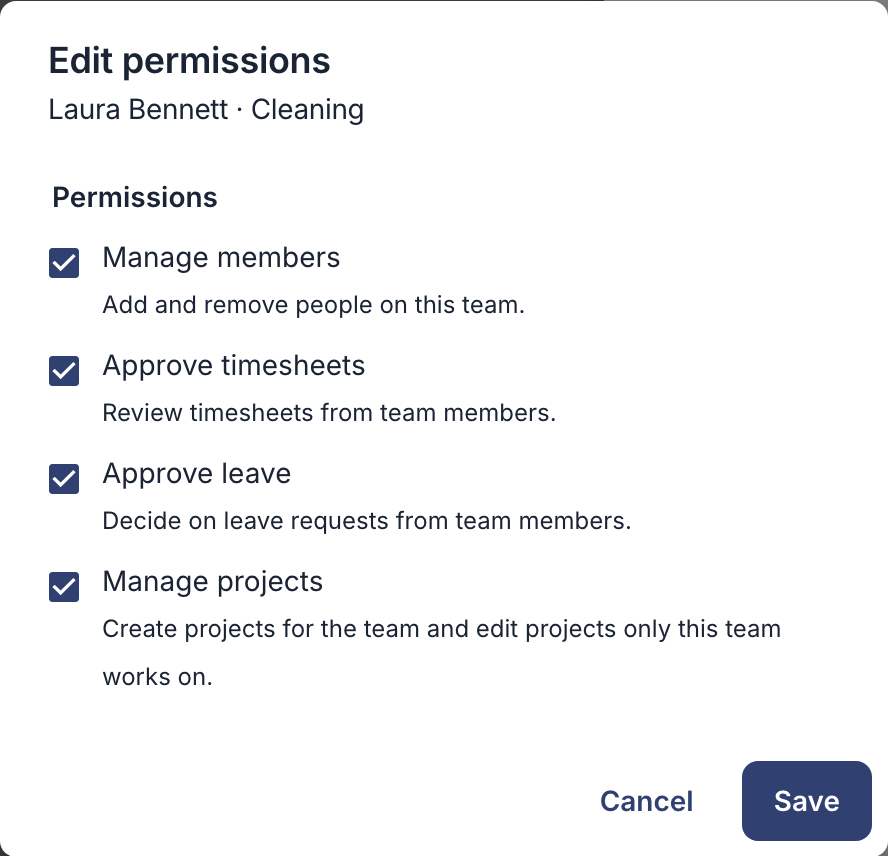
- Approve timesheets: see and approve the hours of the team’s members. See Approve hours.
- Approve leave: decide on the team’s leave requests. See Approve or reject leave requests.
- Manage members: add people to the team and remove them, on the web under Teams or in the app under More → Teams, as in the steps above.
- Manage projects: create projects for the team, and edit projects that belong only to their teams: the name, description, dates and notes, and the tasks (add, change or archive them). A project shared with another team, the budget and customer, who a task is assigned to, and archiving or deleting a project stay with admins.
Managers never approve their own hours or leave, and they can’t correct members’ hours: only owners and admins can. To change a manager’s permissions, click the pencil next to their name, change the ticks and click Save.