If the app isn't working
What to try when EasyHours won't load, asks for an update, or you're offline, and what to send us.
Try these steps, in this order, if EasyHours won’t load or respond.
1. Update the app
Install the latest version from the App Store or Google Play. If the app shows Update required, your version is too old to use: tap Open App Store (on Android: Open Google Play) and update.
The iPhone app needs iOS 17 or later; the Android app needs Android 8 or later. On an older phone, use EasyHours in the browser at app.easyhours.com.
2. Close the app and open it again
Close EasyHours completely (swipe it away in the app switcher), then open it again. On a computer, reload the page.
3. Check your connection
You can clock in and out without internet if your company allows it (allowed by default) and the app was online in the last few days. Clock-ins and clock-outs are saved on your phone, marked as waiting to sync, and sent when you’re back online. If syncing stopped, tap the waiting message on the Clock screen, then Retry sync. If the app asks you to review saved actions, do that, or ask your manager.
Admins can turn offline clocking off under Settings → Clocking in & out → Requirements → Allow offline recording.
The web app needs a connection. If it shows “Could not reach EasyHours”, check your internet and try again.
4. Sign out and in again
- In the app: tap More, tap your name, and tap Sign out at the bottom.
- On the web: click your photo at the top right, then Sign out.
Then sign in again: see Sign in to EasyHours.
If clock-ins are still waiting to sync, the app warns you before you sign out. They stay on the phone: sign back in to the same account and company to send them.
5. Try another device or browser
If the web app shows a blank page or Couldn’t load your account, try another browser, or a private window. If it works there, clear the browser’s data for app.easyhours.com.
Messages that aren’t errors
- “Your company administrator has disabled your account”: ask your admin to reactivate you.
- Time tracking is paused: your company has more than one active person but no active plan. Ask the company owner to check the plan.
- “Access suspended”: a payment is overdue. The company owner can fix it: see Payments and invoices.
Still not working?
Email support@easyhours.com, or use Send feedback under More in the app (on the web: Help → Report a problem). It helps us to know:
- what you tried to do, and what happened instead,
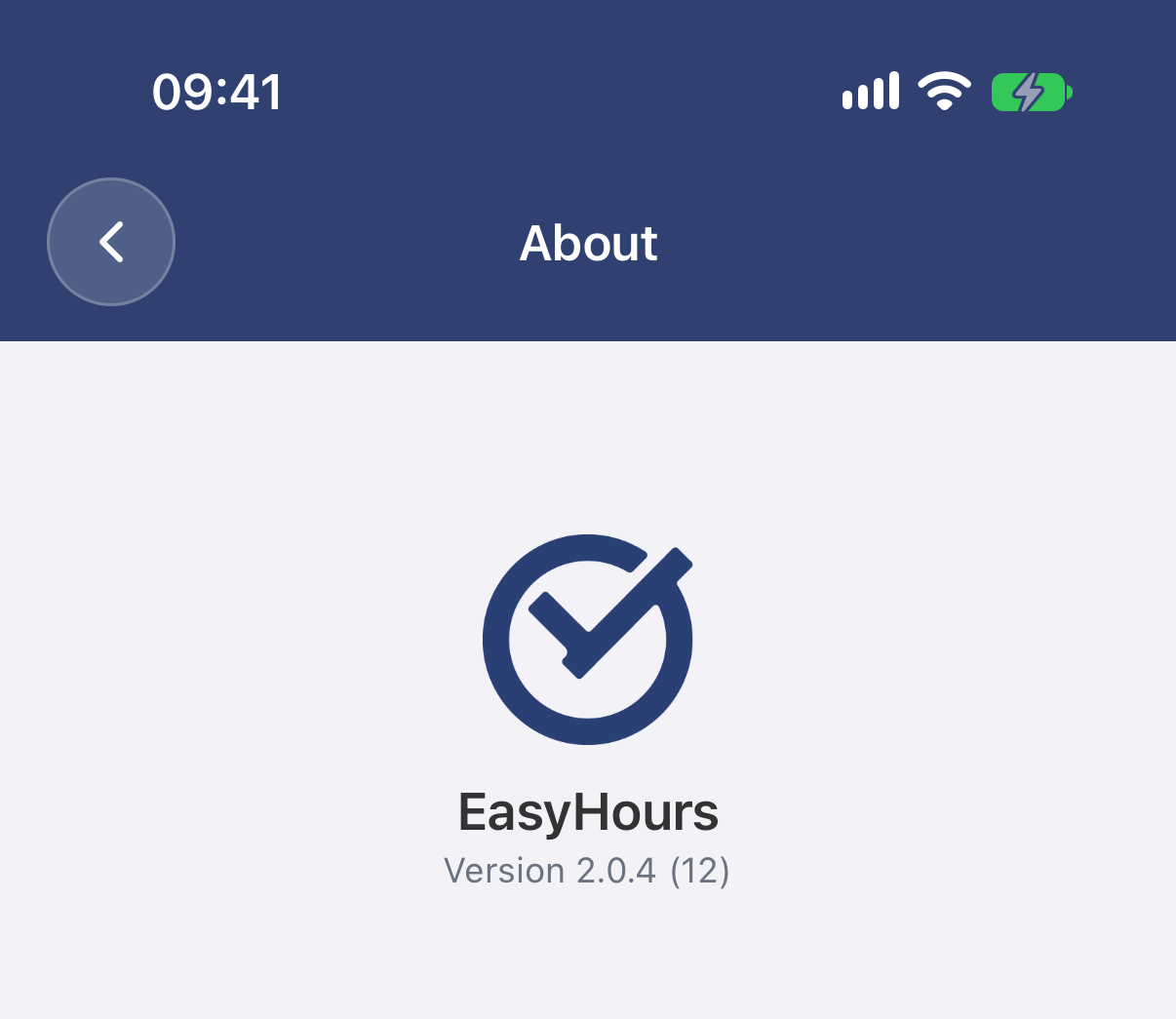
- your phone or computer (and browser), and the app version: More → About EasyHours,
- a screenshot, if you can.