

































Sign in to EasyHours
How signing in with an email code works, and what to do when the code doesn't arrive.
EasyHours has no passwords: to sign in, you enter your email address and we email you a 6-digit code. Use the address your company has for you in EasyHours.
Sign in
In the app
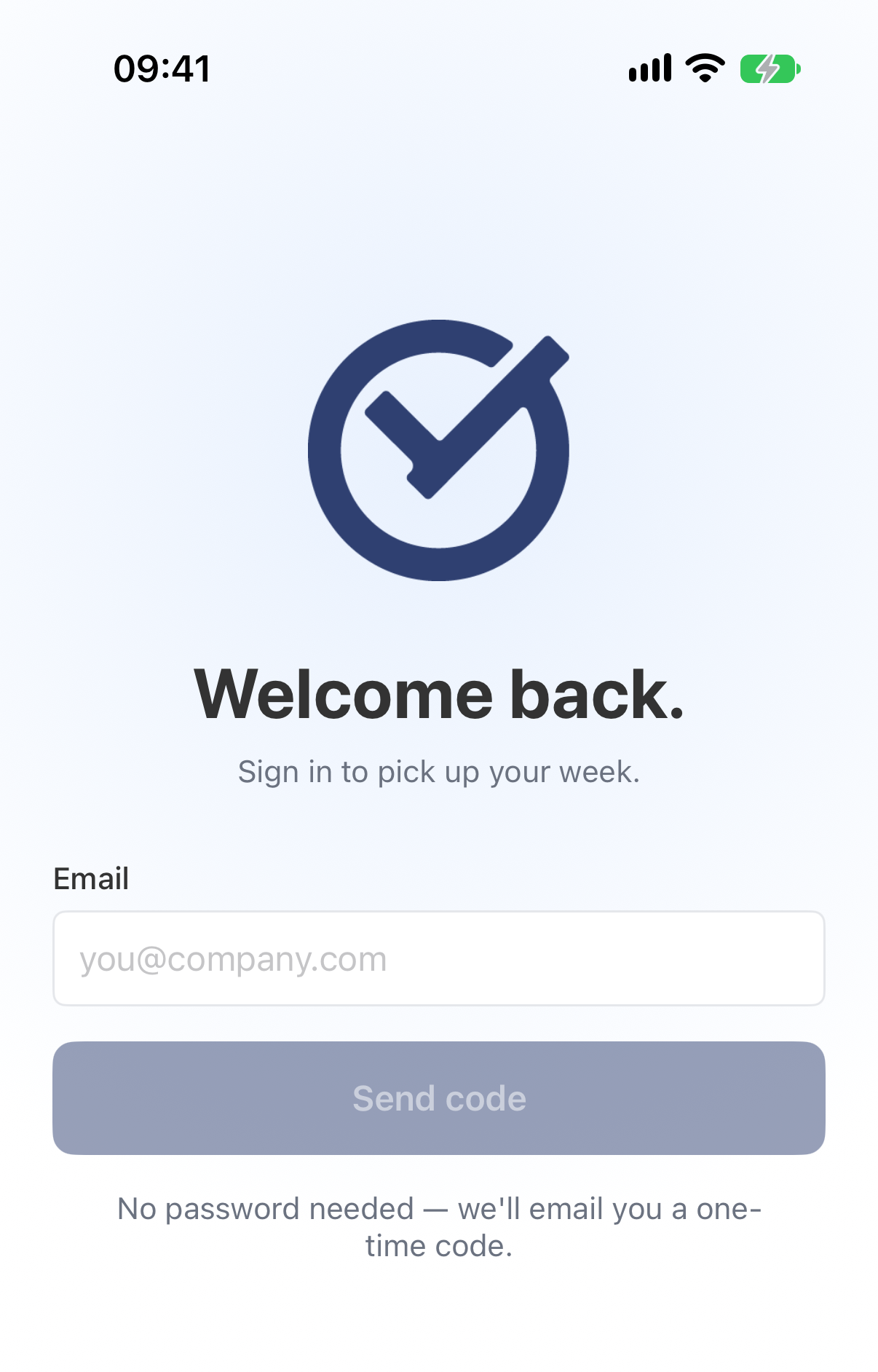
- Open the EasyHours app.
- Enter your email address and tap Send code.
- Open the email from EasyHours and type the 6-digit code into the app.
On the web
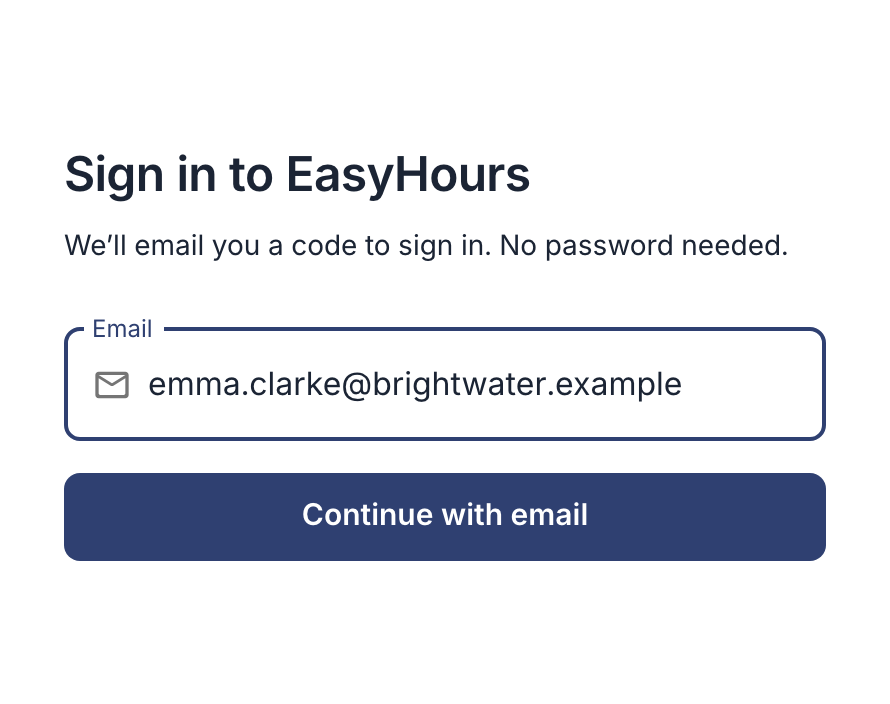
- Go to app.easyhours.com.
- Enter your email address and click Continue with email.
- Open the email from EasyHours and type the 6-digit code.
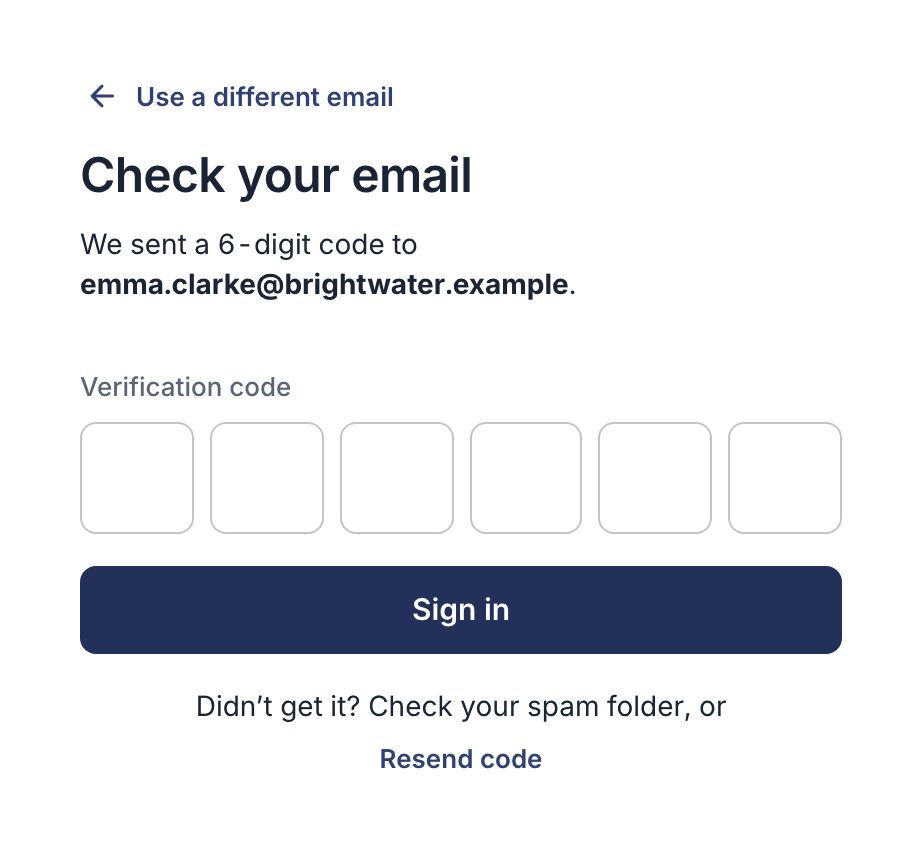
Type the code from the email. Resend code sends a new one.
Each code works once, for 15 minutes. After that you stay signed in. On a new phone, install EasyHours and sign in with the same email address.
If the code doesn’t arrive
- Check your spam or junk folder. The email comes from EasyHours, with the subject “Your EasyHours verification code”.
- Check the address you typed. If it’s wrong, tap Use a different email and enter it again.
- Ask for a new code. When Resend code becomes available, tap it and use the code from the newest email.
- Still nothing? Some company email systems hold back emails from outside. Ask your IT department to allow emails from auth.easyhours.com, or email us at support@easyhours.com.
Other problems
- “The code is incorrect”: use the code from the newest email, and type all six digits. A code older than 15 minutes, or one you’ve used already, doesn’t work. If EasyHours asks you to wait after several tries, try again a little later.
- EasyHours asks you to join or set up a company, but you’re already in one: you may have signed in with a different email address than the one your company has. Sign out and try that address, or ask your admin to check which address they have for you.
- EasyHours says your account isn’t active: your admin has deactivated it. Ask them to reactivate you.