

































Your profile: email, name and language
Change your name, photo, phone number, email address or language.
You can change your own details at any time, in the app or on the web.
Name, photo and phone number
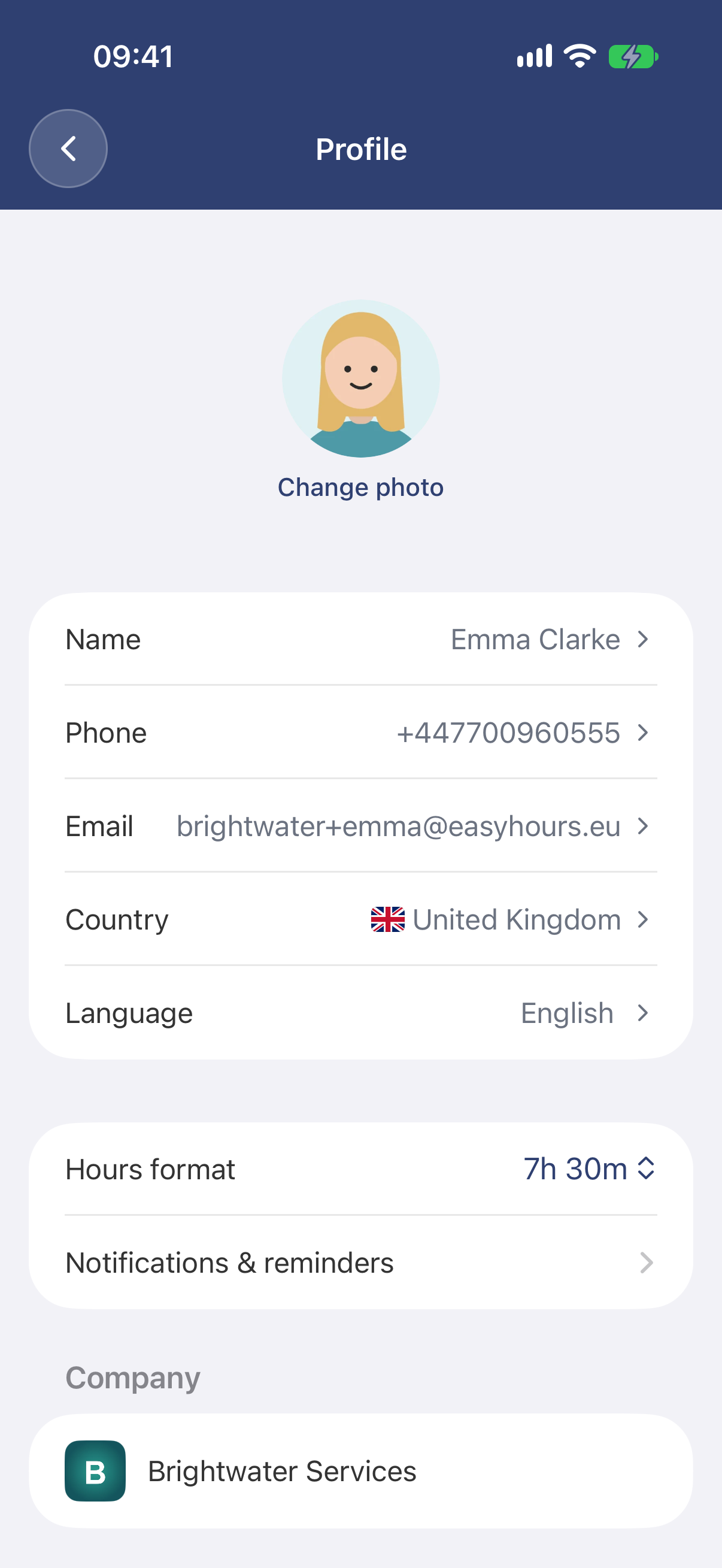
In the app
- Tap More, then tap your name at the top.
- Tap Change photo, or tap Name or Phone, change it and tap Save.
On the web
- Go to Settings → Profile.
- For a new photo: click Edit photo → Upload photo, choose an image, adjust it and click Save photo.
- For your name or phone number: change the Full name or Phone number, and click Save changes, which appears once you change something.
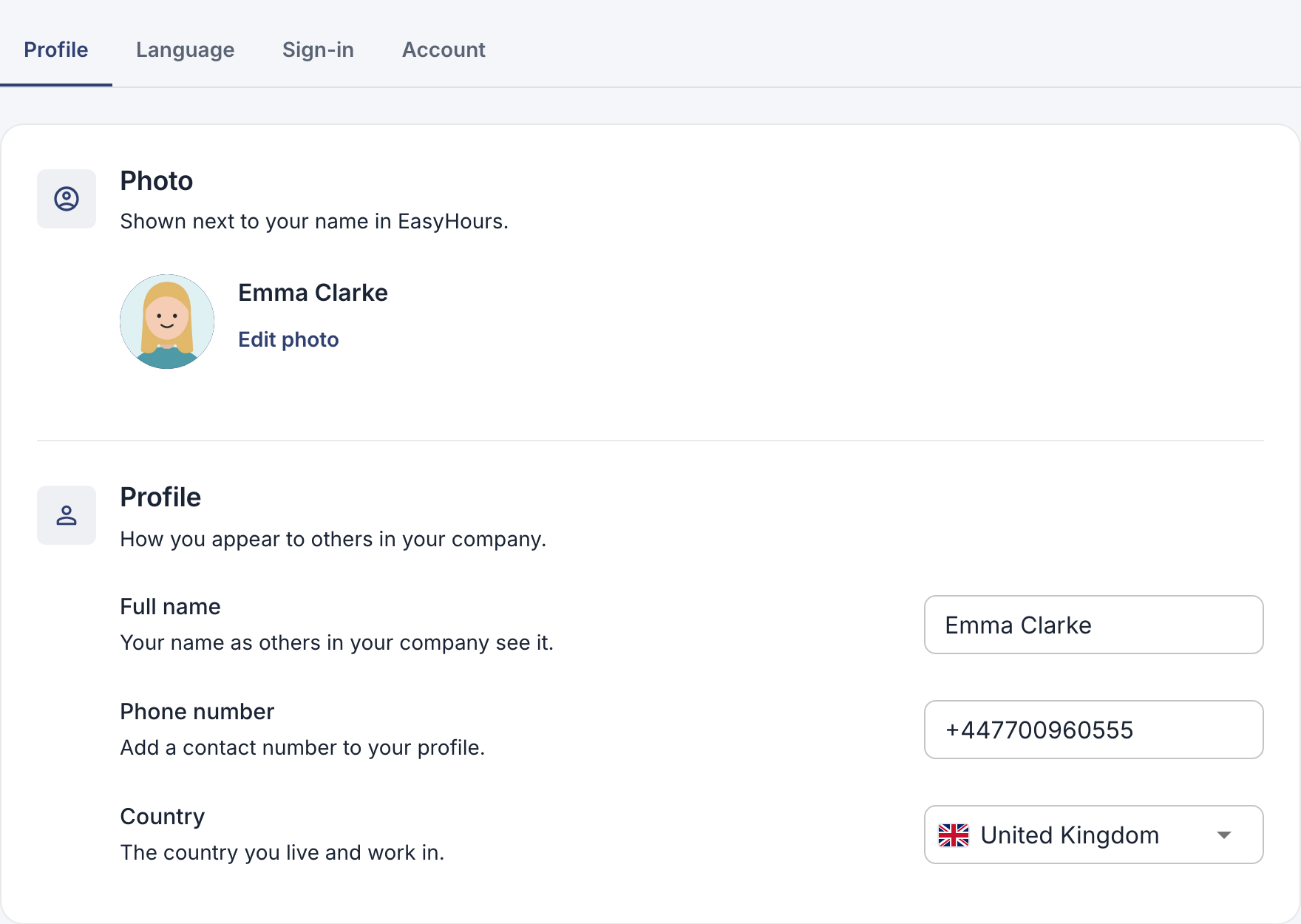
Enter your phone number with the country code, for example +44 7700 900555. Your photo shows next to your name in EasyHours and on the kiosk.
Email address
You sign in with your email address, so changing it means confirming the new one.
In the app
- On your profile, tap Email.
- Enter the new address and tap Continue.
- Enter the 6-digit code we email to the new address, and tap Confirm.
On the web
- Go to Settings → Profile → Sign-in, and click Change next to your email.
- Enter the new address and click Send verification code.
- Enter the 6-digit code we email to the new address, and click Confirm.
After that, you’re signed out everywhere. Sign in again with your new address.
Language
- On the web: Settings → Profile → Language. Choose your language and click Save changes. EasyHours also uses it for notifications and emails.
- In the app: the app follows your phone’s language. Tap Language on your profile to choose another one for EasyHours in your phone’s settings. On Android 12 or older, this changes the whole phone’s language.
Opening the app can switch your web language to the app’s language, so set both the same.
Good to know
- Notifications and reminders: see Reminders and notifications.
- Leaving or deleting your account: see Delete your account or leave a company.
For owners and admins
You can change an employee’s name, photo or email under Employees. For a new email, the code goes to the employee’s new address, and they read it out to you. Only the owner can change an admin’s email, and the owner changes their own email in their own settings.