

































Add employees
Let your team join with the company code, or add people who only use the kiosk.
Most employees join by themselves with your company code. Owners and admins can share it, and add people who only use a shared kiosk.
Share your company code
On the web
- Open Employees in the menu and click Add employee.
- Click Copy code, or copy the ready-made invite message below it.
- Send it to your employees by email or chat.
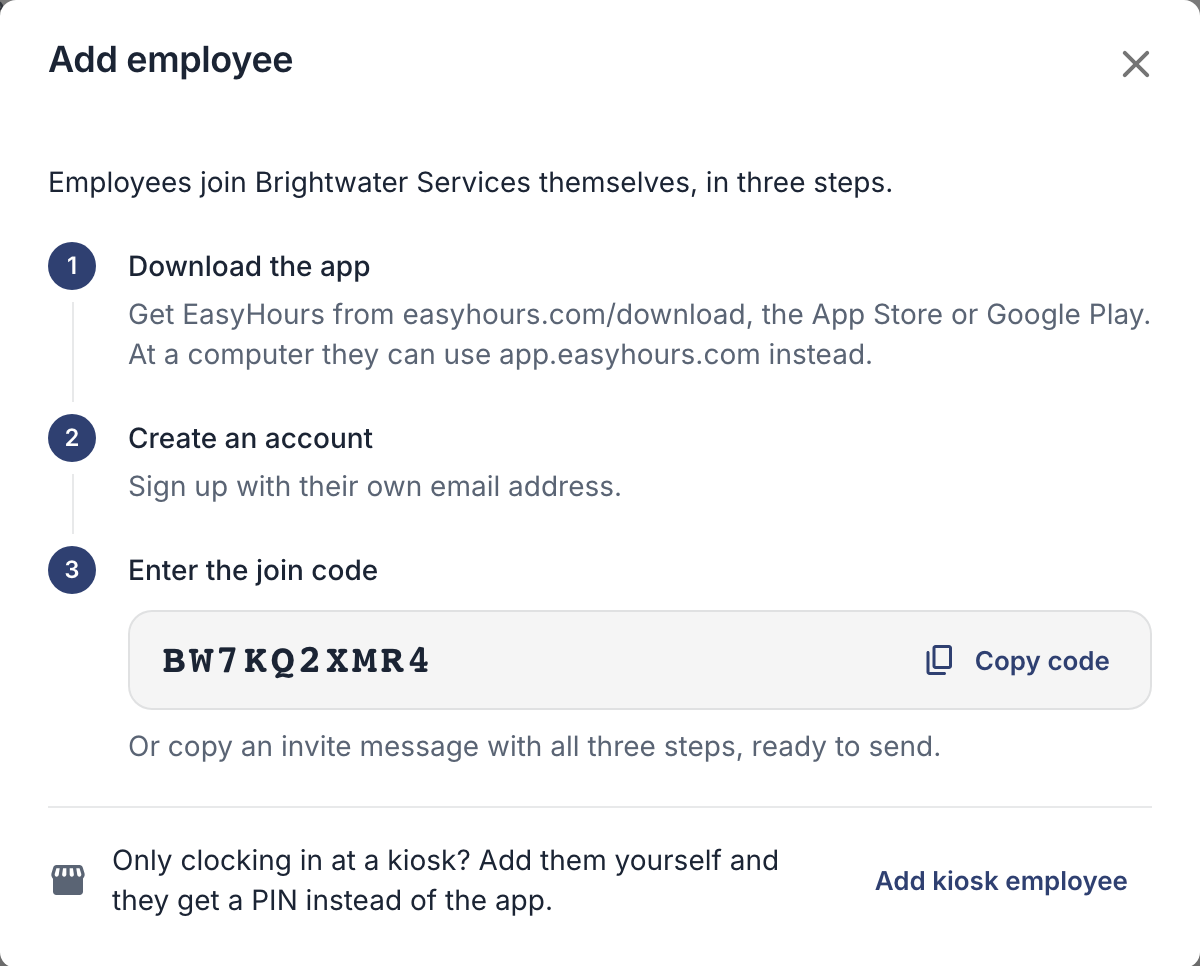
The window shows your code, and the three steps your employees follow.
In the app
- Tap More, then Employees.
- Tap Invite employee.
- Tap Share invitation to send the code by message or email, or copy the code.
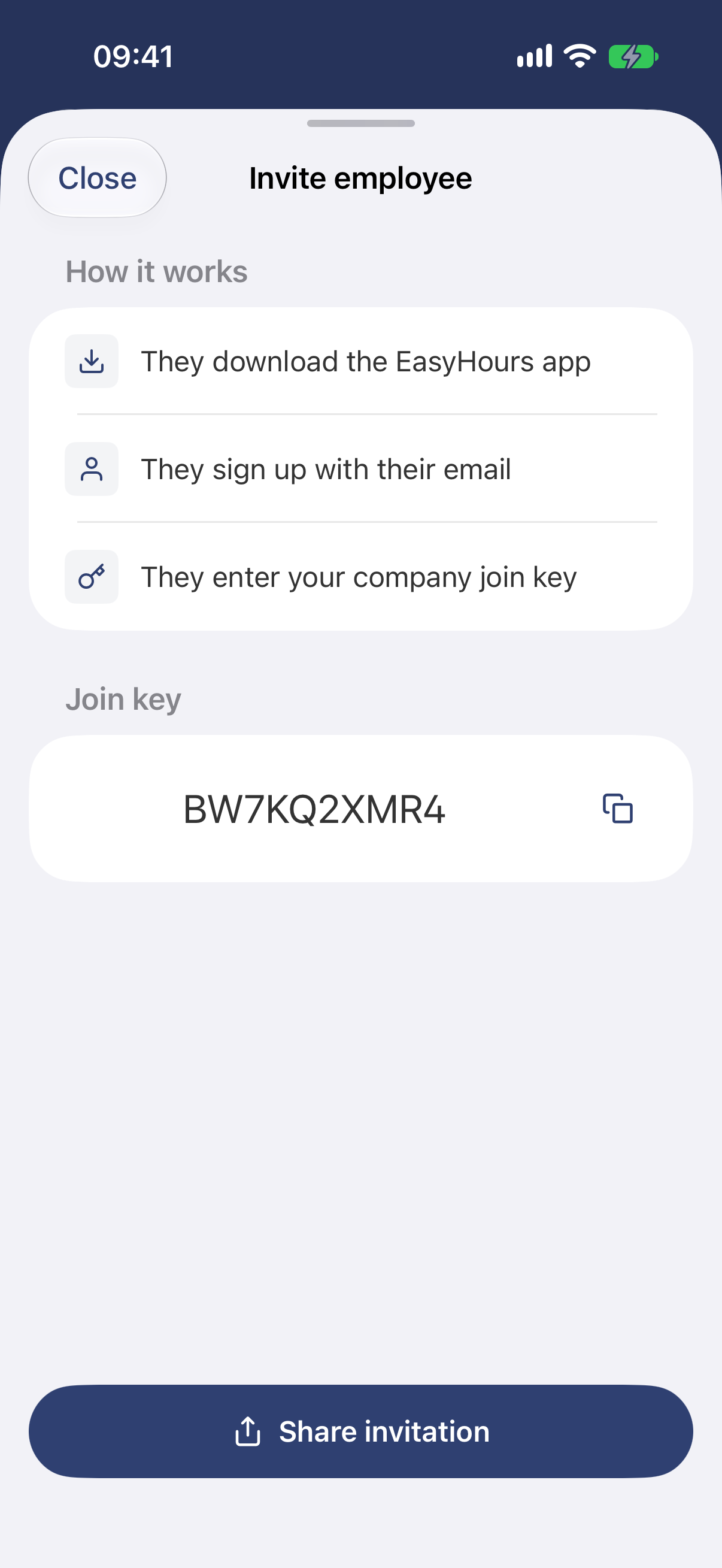
In the app, the company code is called the join key.
Your employees then open the app or app.easyhours.com, sign in with their own email address and enter the code. They appear in Employees straight away. Send them Get started as an employee if they need help.
Add someone who only uses the kiosk
For people who clock in at a shared tablet and don’t need the app. You do this on the web:
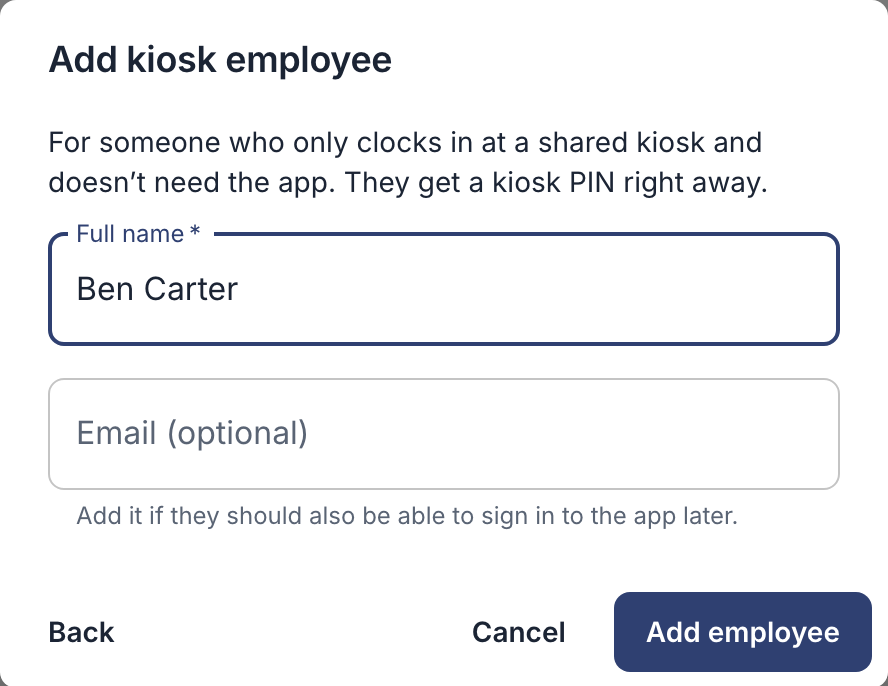
- In Employees, click Add employee, then Add kiosk employee.
- Enter their Full name. Add their email too if they should be able to use the app later.
- Click Add employee.
- Note down the 4-digit kiosk PIN that appears, and give it to them. It isn’t shown again, but you can set a new one any time.
Good to know
- Every active person uses one user on your plan, including the owner, admins and kiosk employees. Deactivated people don’t count. When your plan has no room for another person, the owner adds users under Settings → Billing. On the free plan, choose a plan first.
- New people start as employees. To make someone an admin or a team manager, see Roles, teams and managers.
- Someone left? Don’t delete their hours: see Remove or deactivate an employee.
If it doesn’t work
- “This person already has an EasyHours account”: send them your company code instead.
- An employee joined a new, empty company: they chose to set up a company instead of joining. Send them Get started as an employee.