

































Approve or reject leave requests
Decide on your team's leave requests, one at a time or several at once.
Owners and admins decide on leave requests, and so can team managers who are allowed to approve leave for their teams. Nobody can approve their own leave. You get a notification when a new request comes in.
Decide on a request
On the web
- Open Leave requests. The number next to it shows how many are waiting.
- Stay on the Requests tab, and click a request.
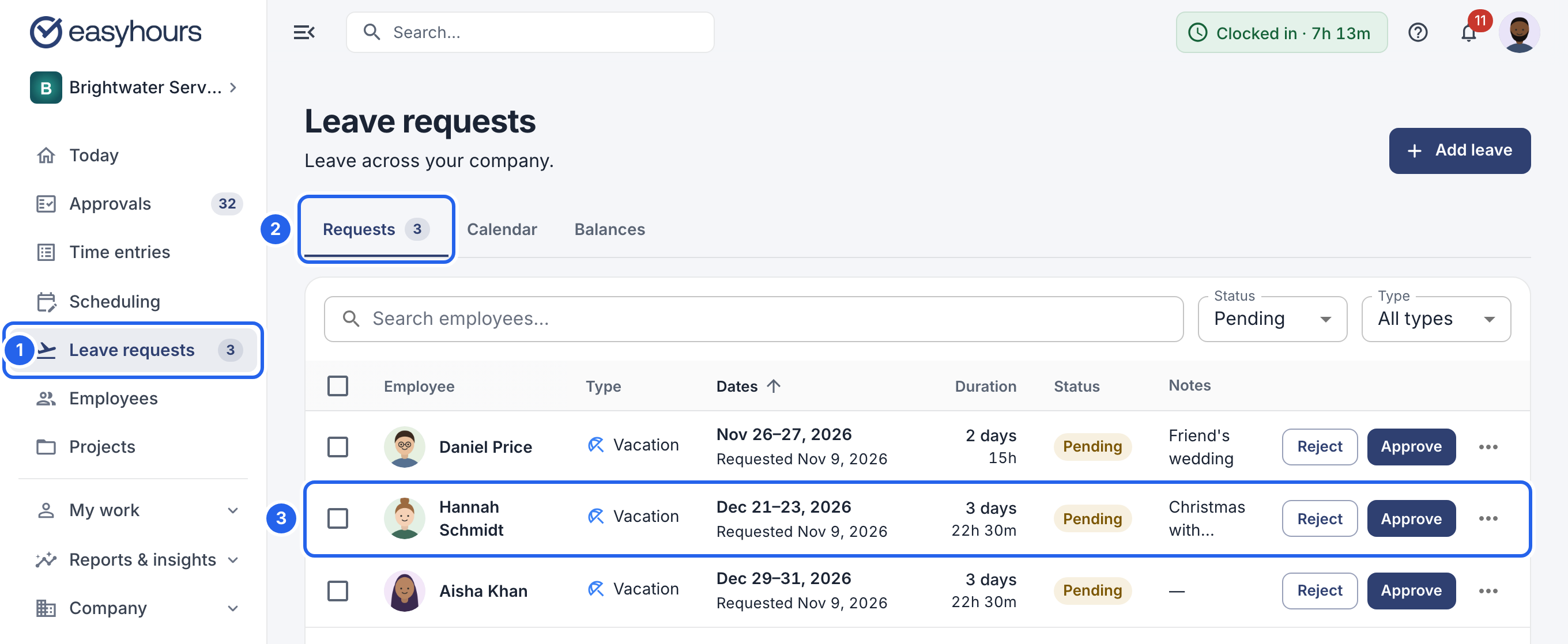
1 Leave requests. 2 The Requests tab. 3 A request.
- Check the days and the employee’s note, then click Approve or Reject. A waiting request also has both buttons in its row in the list, so you can decide without opening it.
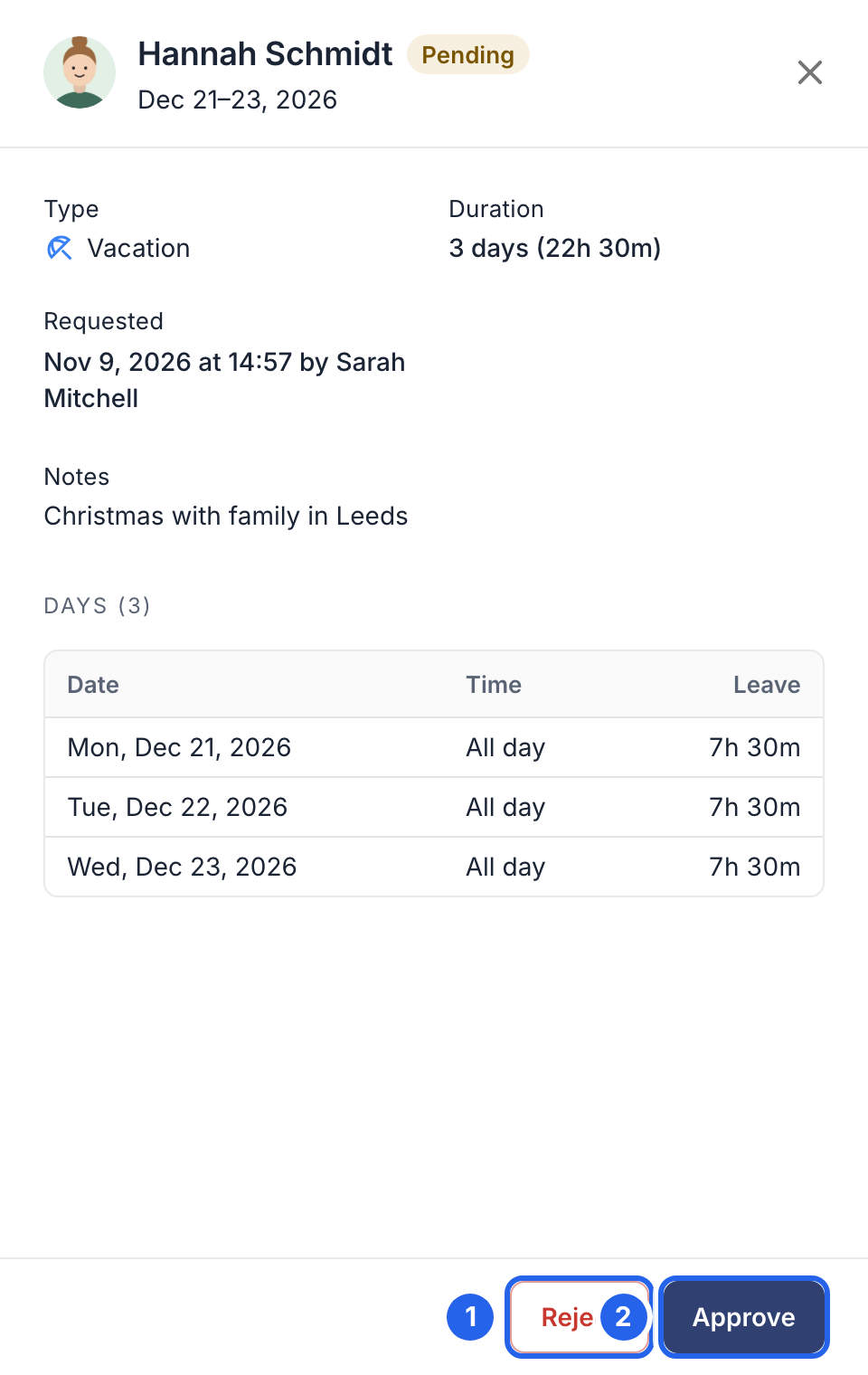
1 Reject. 2 Approve.
- Write a note if you like; the employee sees it. When you reject, a reason helps them plan again.
- Confirm with Approve or Reject.
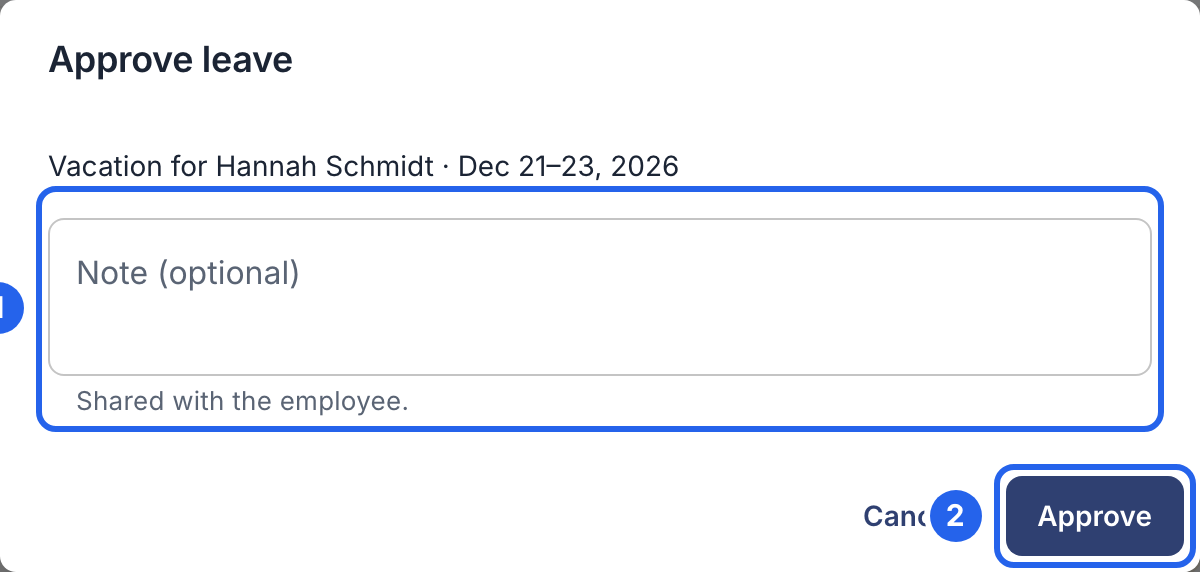
1 An optional note. 2 Confirm.
In the app
- Tap More, then Leave requests.
- Tap a request to see its days and note.
- Tap Approve to approve it straight away. To reject it, tap Reject, add a reason if you like, and tap Reject again.
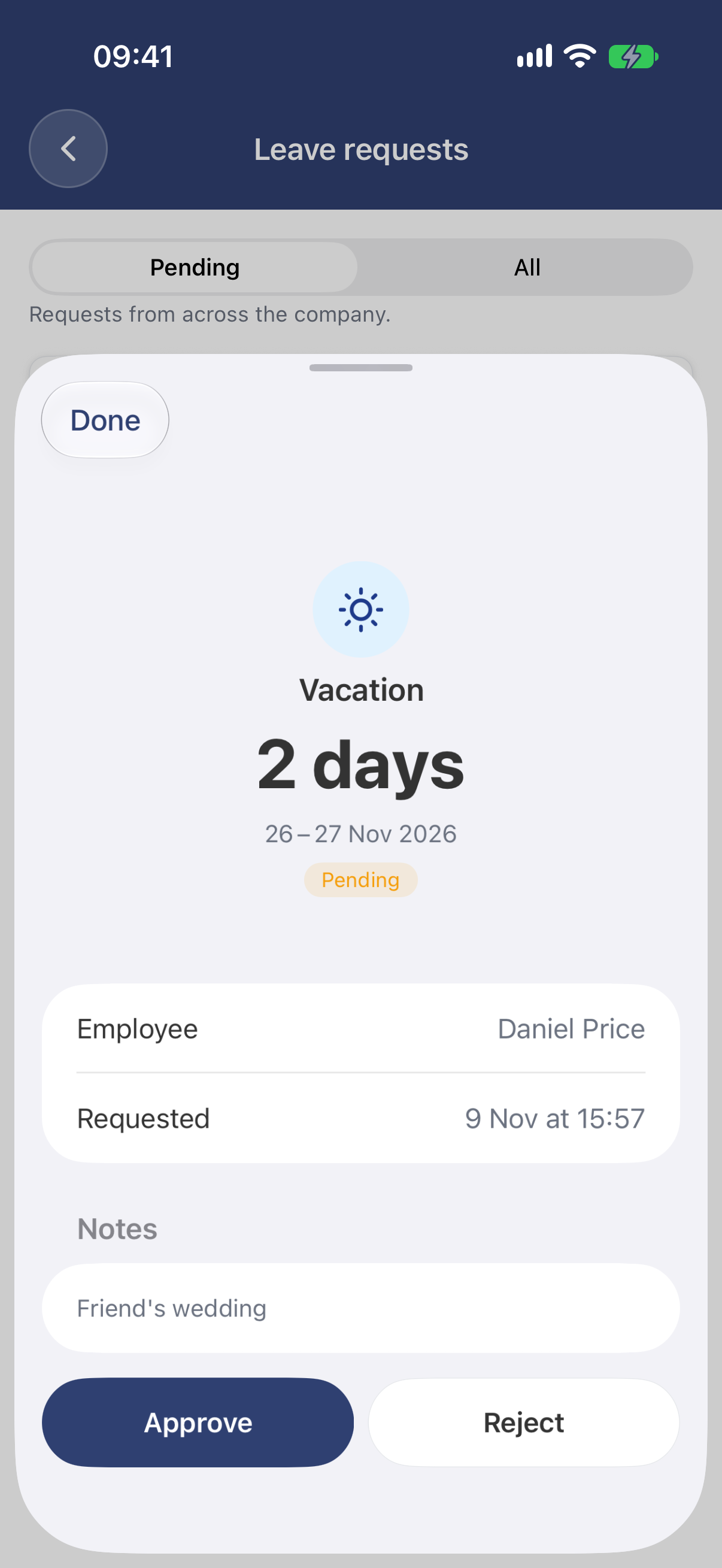
The request, with Approve and Reject at the bottom.
Decide on several at once (web)
Tick the requests in the list. Buttons appear above it: click Approve or Reject, and confirm. A note you write goes to everyone you selected.
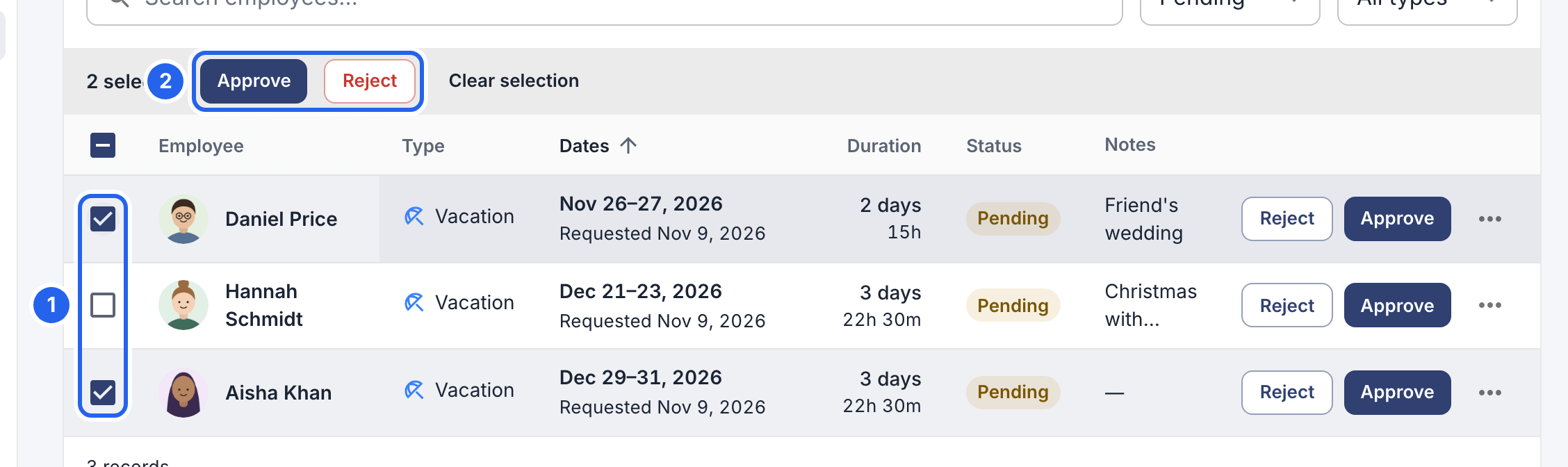
1 Tick the requests. 2 Approve or reject them together.
On the web, the Calendar tab shows pending and approved leave side by side, so you can check who else is away before you decide.