

































Plan and publish shifts
Plan your team's shifts for a week, copy last week, and publish the week so everyone sees it.
Owners and admins plan shifts one week at a time, best on the web under Scheduling. A week stays a draft until you publish it.
The first time
Shifts belong to a schedule: a group of people, such as a team or a site. If you see Create your first schedule, click New schedule, give it a name, add the people with Add people…, and click Create schedule. You can add more schedules later under Manage schedules.
Plan a week
- Open Scheduling and go to the week with the arrows.
- Add shifts in one of these ways:
- Click a dashed Normal hours cell to add that person’s normal hours as a shift.
- Click + in a cell, check the times, break and project, and click Add shift. Choose More options… for a location or note.
- Click Fill week → Copy last week, and confirm with Copy shifts to repeat last week’s shifts.
- Click a shift to change or delete it. You can also drag a shift to another day or person.
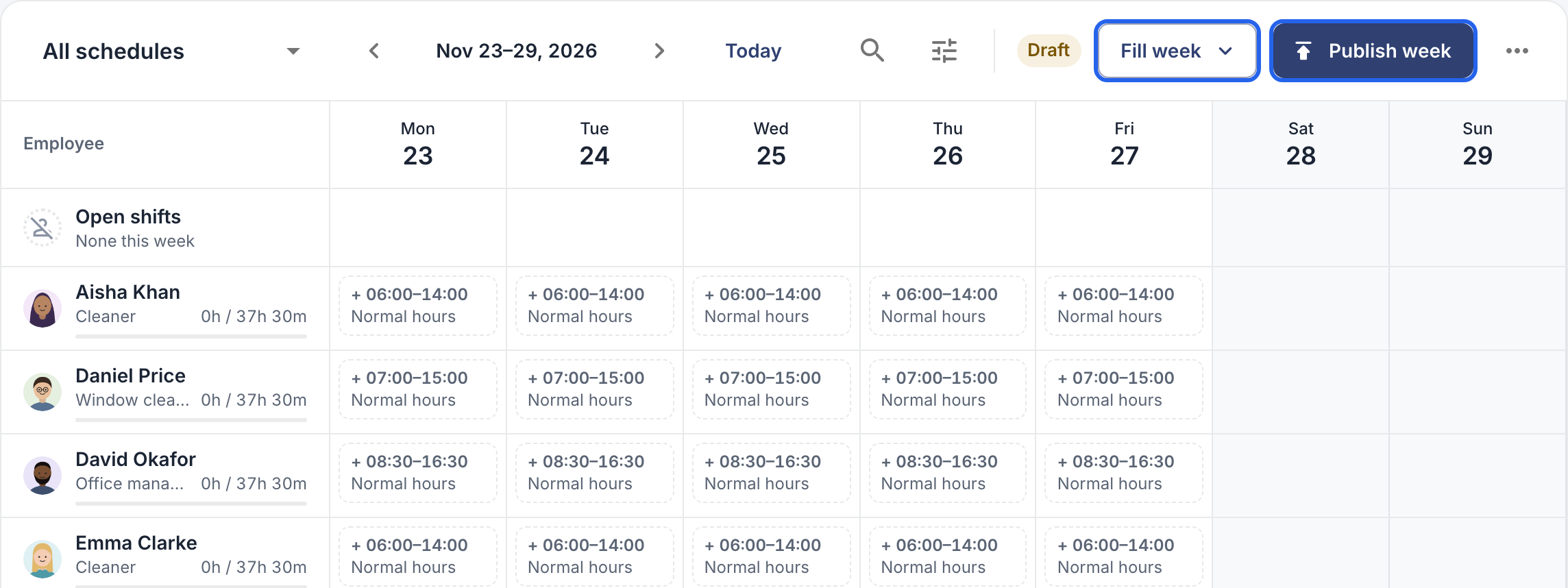
A draft week: the dashed cells are each person’s normal hours. Fill week and Publish week at the top.
Copy last week leaves out shifts that would overlap an existing shift, approved leave, or a full-day public holiday.
Not sure who’ll work a shift? Under Assign to, choose No one yet (open shift). It waits in the Open shifts row until you drag it onto someone. Employees can’t pick up open shifts themselves.
Publish the week
- Check the week, then click Publish week.
- Confirm. The week is now final, and everyone with a shift in it gets a notification.
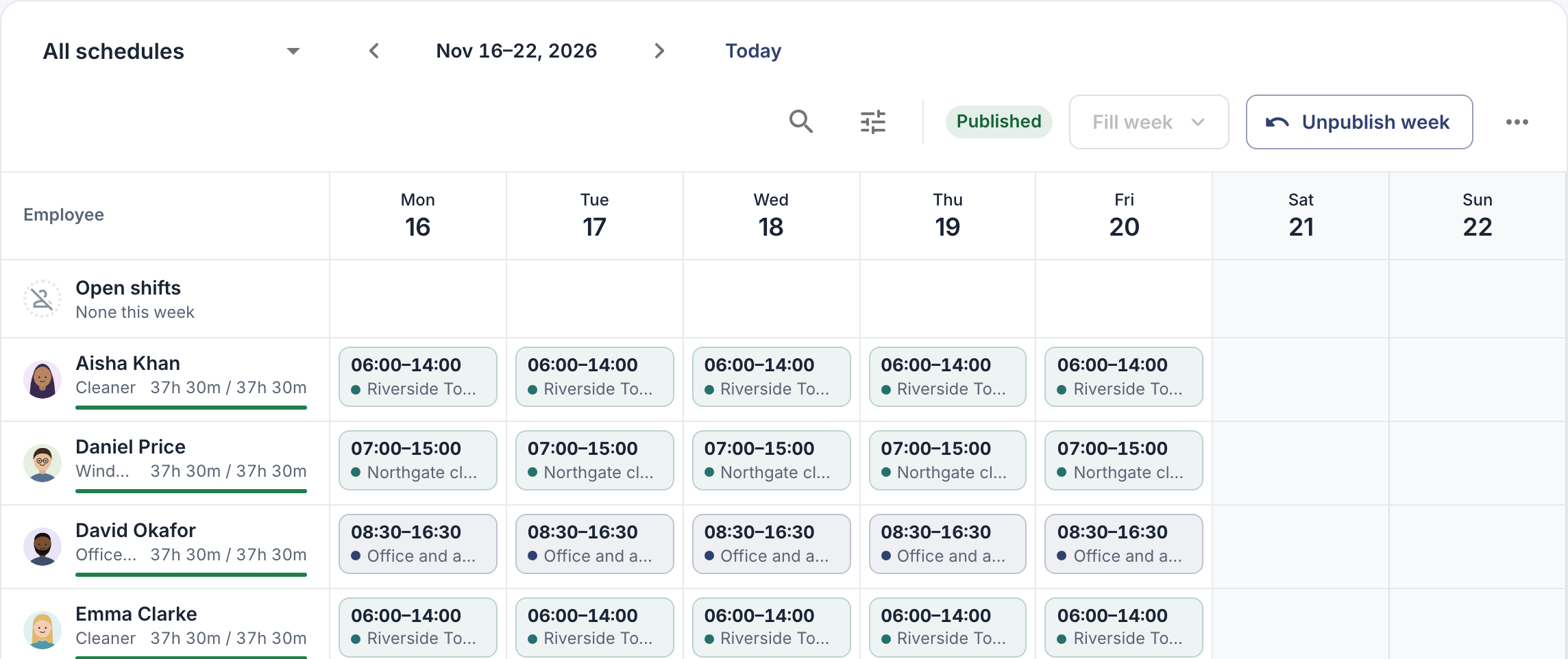
A published week.
Publishing covers the whole week for your whole company, including shifts you’ve hidden with a search or filter.
Change a published week
A published week is locked. Click Unpublish week, make your changes, and publish it again. Everyone with a shift that week gets a notification again.
Good to know
- Employees may see draft weeks. By default they see their shifts marked as a draft before you publish. To show only published weeks, go to Settings → Permissions & approvals → Schedules and set Employees can see their schedule to Published weeks only.
- In the app: tap More → Shift schedules. Tap + next to a day for a New shift, or tap a shift to change it. Under Week actions (⋯) you find Copy last week and Publish week. Schedules and dragging are on the web only.