

































See your shifts
Where to find your planned shifts, who you work with, and when a new schedule is out.
If your company plans shifts in EasyHours, you see yours in the app and on the web, together with your leave and public holidays.
Find your shifts
In the app
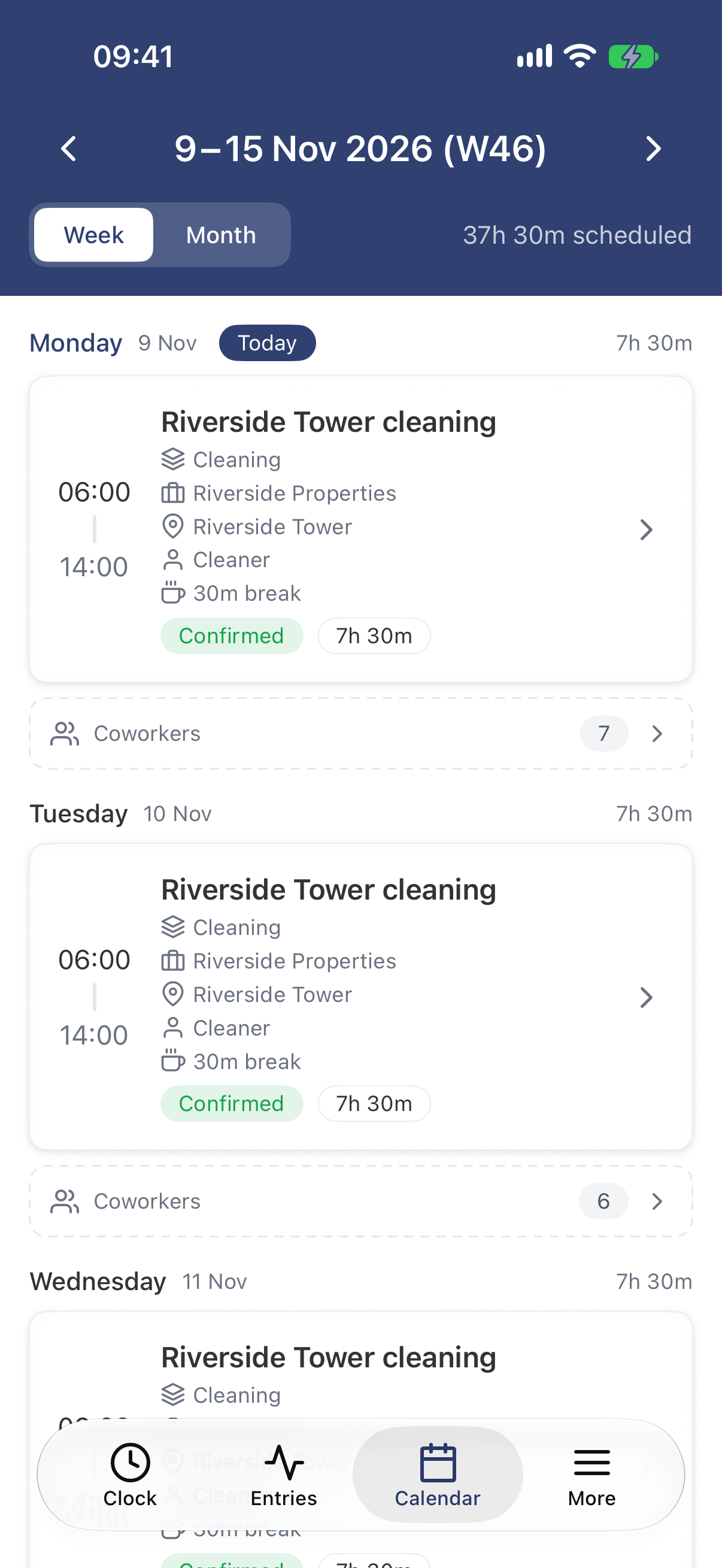
- Tap Calendar at the bottom.
- Each shift’s times and details are on its card. Use the arrows to go to another week.
- To see a whole month, tap Month, then tap a day to see its shifts below the calendar.
On the web
- Open My work → My schedule in the menu.
- Use the arrows to go to another week. For a whole month, choose the view Month, and click a day to open its week.
- Click a shift to see all its details.
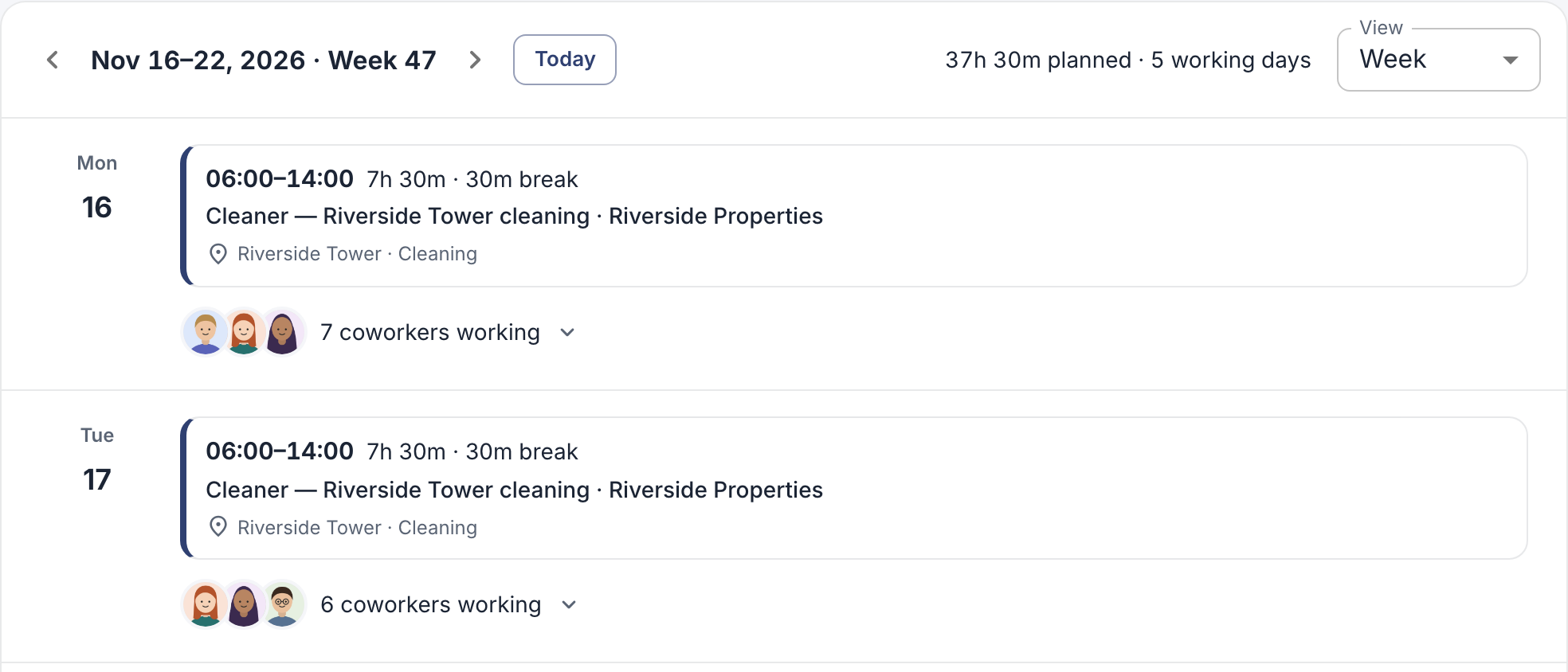
Your week, with the planned hours at the top.
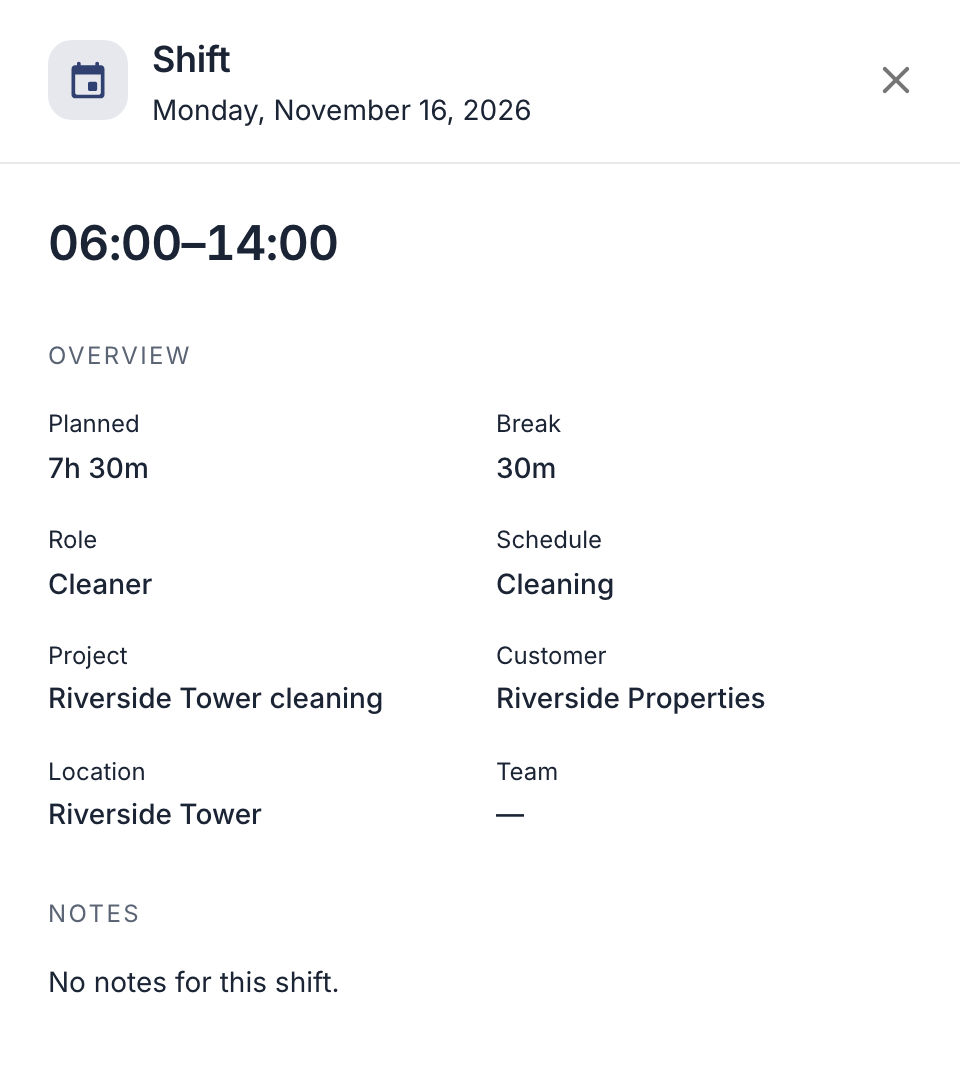
A shift shows its times and break, and, if your company uses them, the project, customer, location and your role. Your company can also show who else works that day.
Planned or final?
Your company may let you see a week before it’s final. Such shifts are marked Draft on the web, or Pending in the app, and can still change. Once the week is published, you get a notification, and the shifts are marked Confirmed in the app.
Good to know
- You still clock in and out for your shifts: see Clock in and out.
- Can’t work a shift? Ask a coworker to take it, if your company allows it: see Swap or give away a shift. Otherwise, talk to your manager.
- No shifts at all? Your company may not plan shifts in EasyHours, or hasn’t planned or published that week yet.