

































Clock in on a kiosk
Clock in and out, take a break and see your hours on the shared kiosk at work.
At a kiosk, the shared tablet at work, you clock in with your name and a 4-digit PIN from your admin.
Clock in
- Tap your name. If the list is long, search for it.
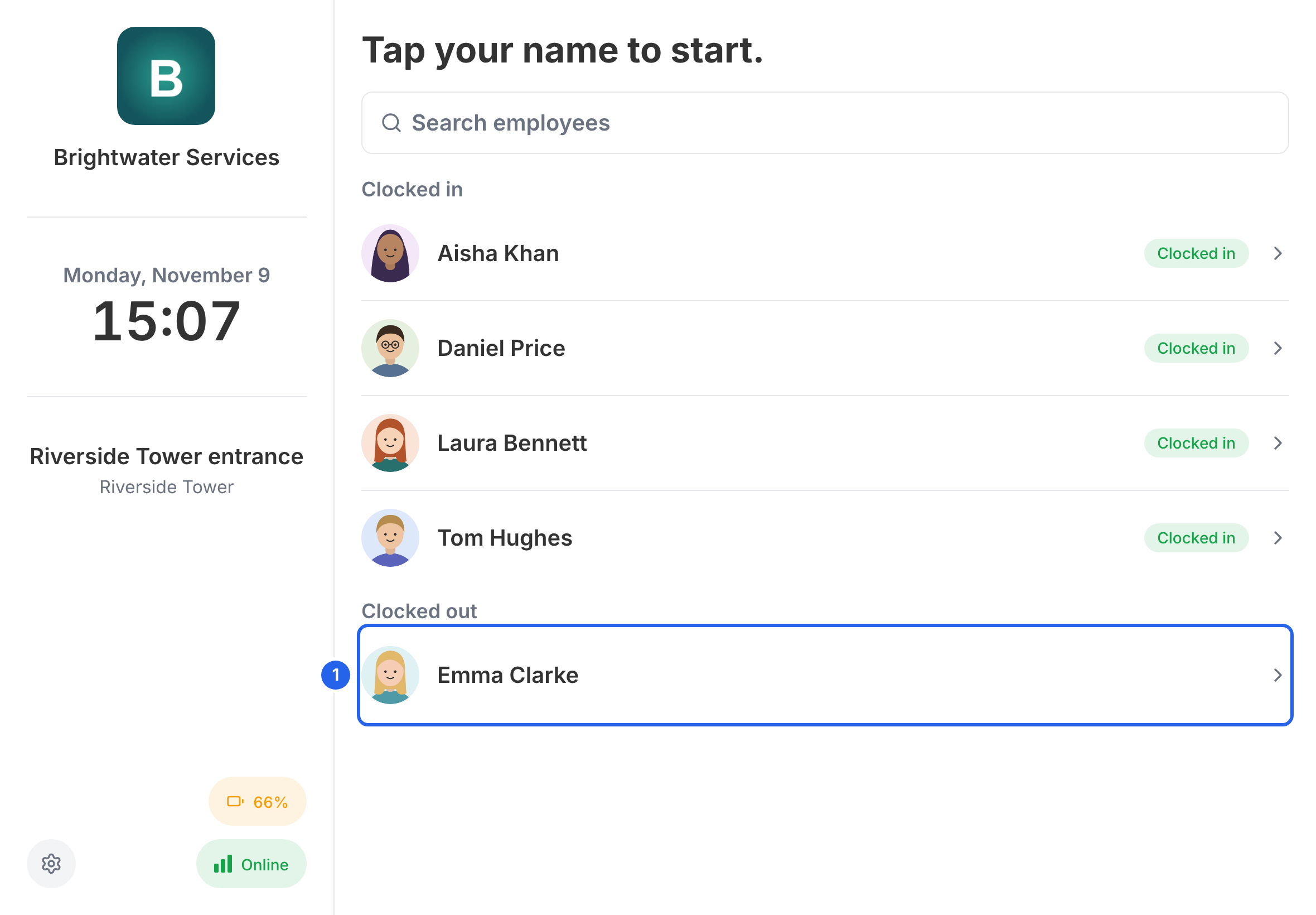
1 Tap your name.
- Enter your PIN.
- If a project or task is shown, check it. Tap it to choose different work.
- Tap Clock in.
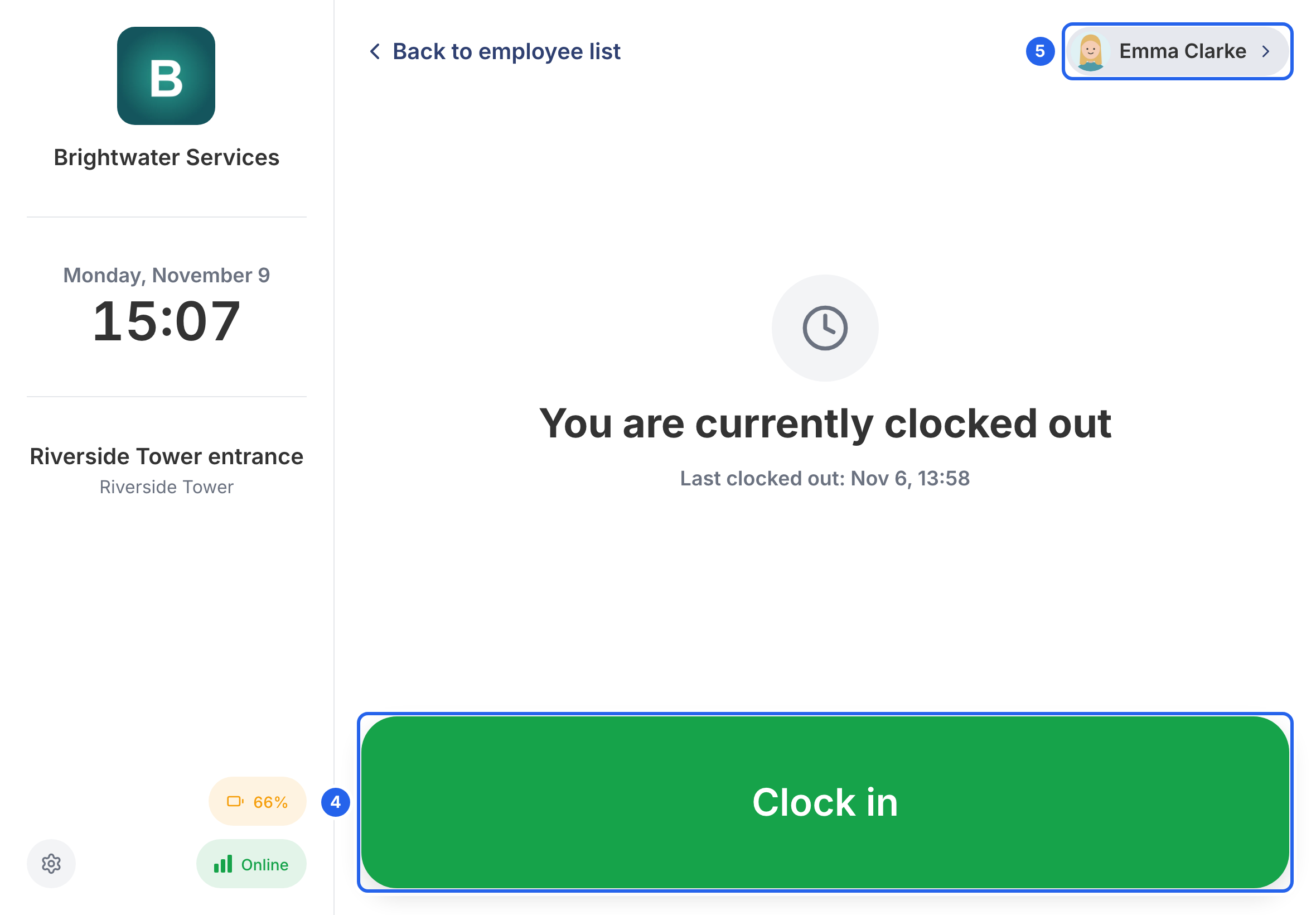
4 Clock in. 5 Your name opens your own page.
A short confirmation appears, and the kiosk goes back to the list for the next person.
Breaks and clocking out
- Tap your name and enter your PIN again.
- Tap Start break, End break, Switch (to change task, if your workplace uses them) or Clock out.
On a break, Clock out is hidden: tap End break first, then enter your PIN again to clock out.
Your own page
After entering your PIN, tap your name at the top right to open My page. There you can:
- see your hours today, this week and this month, and, if your company uses them, your vacation balance and your next shifts;
- request whole days off (see Request leave for what happens next);
- Change PIN or Change photo.
When you’re done, tap Back to employee list. The kiosk also goes back to the list by itself after a short time without use.